 | Chapter 13 |  |

| Chapter 13 | |
Contents:
Components
Containers
AWT Performance and Lightweight Components
Applets
Events
AWT Event Summary
The Abstract Window Toolkit (AWT), or
"another window toolkit," as some people affectionately
call it, provides a large collection of classes for building
graphical user interfaces (GUIs) in Java. With AWT, you can
create windows, draw, work with images, and use components like
buttons, scrollbars, and pull-down menus in a platform-independent way.
The java.awt package contains the
AWT GUI classes.
The java.awt.image package provides some additional
tools for working with images.
AWT is the largest and most complicated part of the standard Java distribution, so it shouldn't be any surprise that we'll take several chapters (five, to be precise) to discuss it. Here's the lay of the land:
Chapter 13 covers the basic concepts you need to understand how AWT builds user interfaces.
In Chapter 14, we discuss the basic components from which user interfaces are built: lists, text fields, checkboxes, and so on.
Chapter 15 discusses layout managers, which are responsible for arranging components within a display.
Chapter 16 discusses the fundamentals of drawing, including simple image displays.
Chapter 17, the last chapter to discuss AWT in detail, covers the image
generation and processing tools that are in the
java.awt.image package. We'll throw in
audio for good measure.
We can't cover the full functionality of AWT
in this book; if you want complete coverage, see the Java AWT
Reference (O'Reilly).
Instead,
we'll cover the basics of the tools you are most likely to
use and show some examples of what can be done with some of the more
advanced features. Figure 13.1 shows the user
interface portion of the java.awt package.

As its name suggests, AWT is an abstraction. Its classes and functionality are the same for all Java implementations, so Java applications built with AWT should work in the same way on all platforms. You could choose to write your code under Windows NT/95, and then run it on an X Window System or a Macintosh. To achieve platform independence, AWT uses interchangeable toolkits that interact with the host windowing system to display user interface components, thus shielding your application code from the details of the environment it's running in. Let's say you ask AWT to create a button. When your application or applet runs, a toolkit appropriate to the host environment renders the button appropriately: on Windows, you can get a button that looks like other Windows buttons; on a Macintosh, you can get a Mac button; and so on.
Working with user interface components in AWT is meant to be easy. While the low-level (possibly native) GUI toolkits may be complex, you won't have to work with them directly unless you want to port AWT to a new platform or provide an alternative "look and feel" for the built-in components. When building a user interface for your application, you'll be working with prefabricated components. It's easy to assemble a collection of user interface components (buttons, text areas, etc.) and arrange them inside containers to build complex layouts. You can also use simple components as building blocks for making entirely new kinds of interface gadgets that are completely portable and reusable.
AWT uses layout managers to arrange components inside containers and control their sizing and positioning. Layout managers define a strategy for arranging components instead of relying on absolute positioning. For example, you can define a user interface with a collection of buttons and text areas and be reasonably confident it will always display correctly. It doesn't matter that Windows, UNIX, and the Macintosh render your buttons and text areas differently; the layout manager should still position them sensibly with respect to each other.
Unfortunately, the reality is that most of the complaints about Java center around AWT. AWT is very different from what many people are used to and (at least for now) lacks some of the advanced features other GUI environments provide. It's also true that most of the bugs in current implementations of Java lie in the AWT toolkits. As bugs are fixed and developers become accustomed to AWT, we would expect the number of complaints to diminish. Java 1.1 is a substantial improvement over previous versions, but there are some rough edges. JavaSoft has released an early version of Swing, which is Java's next generation user interface and part of the larger JFC (Java Foundation Classes). Swing includes many new components, plus support for customizable look-and-feel. It's worth playing with Swing, but we can't cover it in this edition.
Chapter 14 contains examples using most of the components in the
java.awt package. But before we dive
into those examples, we need to spend a bit of time talking about the
concepts AWT uses for creating and handling
user interfaces. This material should get you up to speed on
GUI concepts and on how they are used in Java.
A component is the fundamental user interface object in Java.
Everything you see on the display in a Java application is an
AWT component. This includes things like windows,
drawing canvases, buttons, checkboxes, scrollbars, lists, menus, and
text fields. To be used, a component usually must be placed in a
container. Container objects group components, arrange them for display, and
associate them with a particular display device. All
components are derived from the abstract
java.awt.Component class, as you saw in Figure 13.1. For example, the Button
class is a subclass of the Component class, which
is derived directly from Object.
For the sake of simplicity, we can split the functionality of the
Component class into two categories: appearance and
behavior. The Component class contains methods and
variables that control an object's general appearance. This
includes basic attributes such as whether it's visible, its
current size and location, and certain common graphical defaults like
font and color. The Component class also contains
methods implemented by specific subclasses to produce the
actual graphics the object displays. When a component is first
displayed, it's associated with a particular display device. The
Component class encapsulates access to its display
area on that device. This includes methods for accessing graphics and
for working with off-screen drawing buffers for the display.
By a "component's behavior," we mean
the way it responds to user-driven events. When the user performs an
action (like pressing the mouse button) within a component's
display area, an AWT thread delivers an event object
that describes "what happened." The event is delivered to
objects that have registered themselves as "listeners" for that type
of event from that component. For example, when the user clicks on a
button, the button delivers an
ActionEvent. To receive those events, an
object registers with the button as an
ActionListener.
Events are delivered by invoking designated event-handler methods within
the receiving object (the "listener"). Objects prepare themselves to
receive events by
implementing methods for the types of events in which they are interested
and then registering as listeners with the sources of the events.
Specific types of events cover different categories of
component and user interaction.
For example, MouseEvents describe
activities of the mouse within a component's
area, KeyEvents describe key presses, and
functionally higher level events
such as ActionEvents indicate that a user
interface component has done its job.
Although events are crucial to the workings of AWT, they aren't limited to building user interfaces. Events are an important interobject communications mechanism that may be used by completely nongraphical parts of an application as well. They are particularly important in the context of Java Beans, which use events as an extremely general notification mechanism. We will describe events thoroughly in this chapter because they are so fundamental to the way in which user interfaces function in Java, but it's good to keep the bigger picture in mind.
Containers often take on certain responsibilities for the components that they hold. Instead of every component handling events for its own bit of the user interface, a container may register itself or another object to receive the events for its child components and "glue" those events to the correct application logic.
A component informs its container when it does something that might affect other components in the container, such as changing its size or visibility. The container can then tell the layout manager that it is time to rearrange the child components.
Containers in Java are themselves a kind of component. Because all
components share this structure, container objects can manage and
arrange Component objects without knowing what they
are and what they are doing. Components can be swapped and replaced
with new versions easily and combined into composite user interface
objects that can be treated as individual components. This lends
itself well to building larger, reusable user interface items.
We have just described a nice system in which components govern their own appearance, and events are delivered to objects that are "listening" to those components. Unfortunately, getting data out to a display medium and receiving events from input devices involve crossing the line from Java to the real world. The real world is a nasty place full of architecture dependence, local peculiarities, and strange physical devices like mice, trackballs, and '69 Buicks.
At some level, our components will have to talk to
objects that contain native methods to interact with the host
operating environment. To keep this interaction as clean and well-defined
as possible, Java uses a set of peer
interfaces. The peer interface makes it possible for a pure Java-language
AWT component to use a corresponding real
component--the peer object--in the native environment.
You won't generally deal directly with peer interfaces or
the objects behind them; peer handling is encapsulated within
the Component class. It's important to understand
the architecture, though, because it imposes some limitations on what you
can do with components.
For example, when a component such as a
Button is first created and displayed on the
screen, code in the Component class asks an
AWT Toolkit class to create a
corresponding peer object, as shown in Figure 13.2. The Toolkit is a
factory that knows how to create objects in
the native display system; Java uses this factory design pattern
to provide an abstraction that separates the implementation of component
objects from their functionality.
The Toolkit object contains methods
for making instances of each type of component peer. (As a developer,
you will probably never work with a native user interface
directly.) Toolkits can be swapped and
replaced to provide new implementations of the components without
affecting the rest of Java.
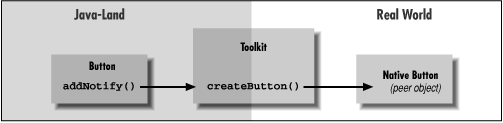
Figure 13.2 shows a
Toolkit producing a peer object for a
Button. When you add a button to a container, the
container calls the Button's
addNotify() method. In turn,
addNotify() calls the
Toolkit's createButton()
method to make the Button's peer object in
the real display system. Thereafter, the Component class keeps a
reference to the peer object and delegates calls to its methods.
The java.awt.peer package, shown in Figure 13.3, parallels the java.awt
package and contains an interface for each type of component. For
example, the Button component has a
ButtonPeer interface, which defines the
capabilities of a button.

The peer objects themselves can be built in whatever way is
necessary, using a combination of Java and native code. (We will discuss
the implementation of peers a bit more in the AWT performance section of this
chapter.)
A Java-land button doesn't know or care how the real-world button
is implemented or what additional capabilities it may have; it knows
only about the existence of the methods defined in the
ButtonPeer interface. Figure 13.4 shows a call to the
setLabel() method of a Button
object, which results in a call to the corresponding
setLabel() method of the native button object.

In this case, the only action a button peer must be able to perform is to set
its label text; setLabel() is the only method in the
ButtonPeer interface. How the native button acts,
responds to user input, etc., is entirely up to it. It might turn
green when pressed or make a "ka-chunk" sound. The component in Java-land has no
control over these aspects of the native button's behavior--and
this has important implications. This abstraction allows
AWT to use native components from whatever platform it
resides on. However, it also means that a lot of a component's functionality
is locked away where we can't get to it.
We'll see that we can usually intercept events before the peer object has a
chance to act on them, but we usually can't change much of the object's basic
behavior.
A component gets its peer when it's added to a container.
Containers are associated with display devices through
Toolkit objects, and thus control the process of
peer creation. We'll talk more about the ramifications of this when we discuss
addNotify() later.
Before we continue our discussion of GUI concepts, I want to make a brief aside and talk about the Model/View/Controller (MVC) framework. MVC is a method of building reusable components that logically separates the structure, representation, and behavior of a component into separate pieces. MVC is primarily concerned with building user interface components, but the basic ideas can be applied to many design issues; its principles can be seen throughout Java. Java doesn't implement all of MVC, whose origins are in Smalltalk, but MVC's influence is apparent throughout the language.
The fundamental
idea behind MVC is the separation of the data model
for an item from its presentation. For example, we can draw different
representations (e.g., bar graphs, pie charts) of the data in a
spreadsheet. The data is the "model"; the particular
representation is the "view." A single model can have many
views that show different representations of the data. The behavior of
a user interface component usually changes its model and affects how
the component is rendered as a view. If we were to create a button
component, for example, its data model could be as simple as a
boolean value for whether it's up or down. The
behavior for handling mouse-press events would alter the model, and the
display would examine that data when it draws the on-screen
representation.
The way in which AWT objects communicate, by passing events from sources
to listeners, is part of this MVC concept of separation. Event listeners
are "observers," and event sources are "observables." When an observable
changes or performs a function, it notifies all of its observers of the
activity. In Chapter 9 we described the
Observer class and
Observable interface of the
java.util package. AWT doesn't use
these classes directly, but it does use exactly the same design pattern
for handling event sources and listeners.
This model of operation is also central to the way in which Java works with graphics, as you'll see in Chapter 17. Image information from a producer, such as a graphics engine or video stream, is distributed to consumers that can represent different views of the data. Consumers register with a producer and receive updates as the image is created or when the image has changed.
The factory concept used by the Toolkit
objects is related to MVC; factories use Java
interfaces to separate the implementation of an object from its
behavior. An object that implements an interface doesn't have to
fit into a particular class structure; it needs only to provide the
methods defined by the interface. Thus, an AWT
Toolkit is a factory that produces native
user interface components that correspond to Java components. The
native components don't need to match
AWT's class structure, provided they
implement the appropriate interface.
Components can be asked to draw themselves at any time. In a more procedural programming environment, you might expect a component to be involved in drawing only when first created or when it changes its appearance. In Java, components act in a way that is more closely tied to the underlying behavior of the display environment. For example, when you obscure a component with a window and then re-expose it, an AWT thread asks the component to redraw itself.
AWT asks a component to draw itself by
calling its paint()
method. paint() may be called at any time, but in
practice, it's called when the object is first made visible, whenever
it changes its appearance, and whenever some tragedy in the display
system messes up its area. Because
paint() can't make any assumptions about why
it was called, it must redraw the component's entire display.
However, redrawing the whole component is unnecessary if only a
small part changes, especially in an anticipated way.
In this case, you'd like to specify what
part of the component has changed, and redraw that part
alone. Painting a large portion of the screen is time consuming and
can cause flickering that is especially annoying if you're
redrawing the object frequently, as is the case with animation. When a component
realizes it needs to redraw itself, it should ask
AWT to schedule a call to its
update() method.
update() can
do drawing of its own, but it often simply defines a
clipping region--by calling
clipRect()--on its graphics context; to limit
the extent of the painted area and then
calls paint() explicitly. A simple
component doesn't have to implement its own
update() method, but that doesn't mean the
method doesn't exist. In this case, the component gets a default
version of update() that simply clears the
component's area and calls paint().
A component never calls its update() method
directly. Instead, when a component requires redrawing, it schedules a
call to update() by invoking
repaint(). The repaint() method
asks AWT to schedule the component for
repainting. At some point in the future, a call to
update() occurs. AWT is allowed
to manage these requests in whatever way is most efficient. If there
are too many requests to handle, or if there are multiple requests for
the same component, AWT can reschedule a number of
repaint requests into a single call to update().
This means that you can't predict
exactly when update() will be called in response to
a repaint(); all you can expect is that it happens
at least once, after you request it.
Calling repaint() is normally an implicit request to be updated as soon
as possible. Another form of repaint() allows you
to specify a time period within which you would like an update, giving
the system more flexibility in scheduling the request. An application
can use this method to govern its refresh rate. For example,
the rate at which you render frames for an animation might vary, depending
on other factors (like the complexity of the image). You could impose
an effective maximum frame rate by calling repaint() with a time (the inverse
of the frame rate) as an argument. If you then happen to make more than
one repaint request within that time period, AWT is not obliged to physically
repaint for each one. It can simply condense them to carry out a single
update within the time you have specified.
Both paint() and update()
take a single argument: a Graphics object. The
Graphics object represents the component's
graphics context. It corresponds to the area of the screen on which
the component can draw and provides the methods for performing
primitive drawing and image manipulation. We'll look at the
Graphics class in detail in Chapter 16.
All components paint and update themselves using this
mechanism. However, you really care about it only when doing your own
drawing, and in practice, you should be drawing only on a
Canvas, Panel,
Applet,
or your own subclasses of Component.
Other kinds of objects, like buttons and
scrollbars, have lots of behavior built into their peers. You may be able to
draw on one of these objects, but unless you specifically catch the
appropriate events and redraw (which could get complicated), your
handiwork is likely to disappear.
Canvases,
Panels, and lightweight components
are "blank slates" on which to implement your own behavior and appearance.
For example, by itself, the AWT Canvas has no
outward appearance; it takes up space and has a background color, but
otherwise, it's empty. By subclassing Canvas and
adding your own code, you can create a more complicated object like a
graph or a flying toaster. A lightweight component is even "emptier"
than that. It doesn't have a real Toolkit
peer for its implementation;
you get to specify all of the behavior and appearance yourself.
A Panel is like a
Canvas, but it's also a
Container, so it can hold other user interface components. In the same way, a lightweight container is a simple
extension of the AWT Container class.
Standard AWT components can be turned on and off by calling the
enable() and
disable() methods.
When a component like a Button or
TextField is disabled, it becomes
"ghosted" or "greyed-out" and doesn't respond to user input.
For example, let's see how to create a component that can be used
only once. This requires getting ahead of the story; I won't explain some
aspects of this example until later. Earlier, I said that a
Button generates an
ActionEvent when it is pressed. This event
is delivered to the listeners'
actionPerformed() method. The code below
disables whatever component generated the event:
public boolean void actionPerformed(ActionEvent e ) {
	...
    ((Component)e.getSource()).disable();
}
This code calls getSource() to find out
which component generated the event. We cast the result to
Component because we don't necessarily
know what kind of component we're dealing with; it might not be a
button, because other kinds of components can generate action events.
Once we know which component generated the event, we disable it.
You can also disable an entire container. Disabling a
Panel, for instance, disables all the components it
contains.
Unfortunately, disabling components and containers is handled by the
AWT toolkit at a low level. It is currently not possible to notify custom
(pure Java) components when their native containers are disabled.
This flaw should be corrected in a future release.
In order to receive keyboard events, a component has to have keyboard
focus. The component with the focus is simply the
currently selected input component. It receives all keyboard event
information until the focus changes. A component can ask for
focus with the Component's
requestFocus() method. Text components like
TextField and
TextArea do this
automatically whenever you click the mouse in their area. A component
can find out when it gains or loses focus through the
FocusListener interface (see Tables 13-1 and 13-2 later in this chapter).
If you want to create your own text-oriented
component, you could implement this behavior yourself. For instance,
you might request focus when the mouse is clicked in your component's
area. After receiving focus, you could change the cursor or do
something else to highlight the component.
Many user interfaces are designed so that the focus automatically
jumps to
the "next available" component when the user presses the Tab key.
This behavior is particularly common in forms; users often expect to
be able to tab to the next text entry field. AWT handles automatic
focus traversal for you when it is applicable.
You can get control over the behavior through
the transferFocus() and
isFocusTraversable() methods of
Component.
transferFocus() passes the focus to the
next appropriate component.
You can use transferFocus() to control the
order of tabbing between components by
overriding it in the container and implementing your own policy.
isFocusTraversable() returns a boolean
value specifying whether the component
should be considered eligible for receiving a transfer focus.
Your components can override this method to determine whether they
can be "tabbed to."
The Component class is very large; it has
to provide the base level
functionality for all of the various kinds of Java GUI objects. We don't have
room to document every method of the component class here, but we'll flesh
out our discussion by covering some more of the important ones:
Container getParent()Return the container that holds this component.
String getName() / void setName(String name)Get or assign the String name of this component.
Naming a component is useful for debugging.
The name shows up when you do a toString().
setVisible(boolean visible)Make the component visible or invisible, within its container.
If you change the component's visibility, remember to call
validate()
on the container; this causes the layout manager to lay out the
container again.
Color getForeground() / void setForeground(Color c)Color getBackground() / void setBackground(Color c)Get and set the foreground and background colors for this component.
The foreground color of any component is the default color used for
drawing. For example, it is the color used for text in a text field;
it is also the default drawing color for the
Graphics object passed to the component's
paint() method.
The background color is used to fill the component's area when it is
cleared by the default implementation of
update().
Font getFont() / void setFont(Font f)Get or set the Font for this component.
(Fonts are discussed in Chapter 16.)
You can set the Font on text components
like TextField and
TextArea.
For Canvases,
Panels, and lightweight components, this
will also be the
default font used for drawing text on the Graphics context passed to
paint().
FontMetrics getFontMetrics(Font font)Find out the characteristics of a font when rendered on this component.
FontMetrics allow you to find out the
dimensions of text when rendered in that font.
Dimension getSize() / void setSize(int width, int height)Get and set the current size of the component. Remember to call
validate()
on the component's container if you change its size. There are other methods
in Component to set its location, but
normally this is the job of a layout manager.
Cursor getCursor() / void setCursor(Cursor cursor)Get or set the type of cursor (mouse pointer) used when the mouse is over this component's area. For example:
Component myComponent = ...;
Cursor crossHairs = Cursor.getPredefinedCursor( Cursor.CROSSHAIR_CURSOR );
myComponent.setCursor( crossHairs );
|  | |
| 12.5 Talking to CGI Programs |  | 13.2 Containers |
