 | Chapter 16 |  |

| Chapter 16 | |
Contents:
Basic Drawing
Colors
Fonts
Images
Drawing Techniques
If you've read the last few chapters, you've probably picked up the basics of how graphical operations are performed in Java. Up to this point, we have done some simple drawing and even displayed an image or two. In this chapter, we will finally give graphics programming its due and go into depth about drawing techniques and the tools for working with images in Java. In the next chapter, we'll explore image-processing tools in more detail, and we'll look at the classes that let you generate images pixel by pixel on the fly.
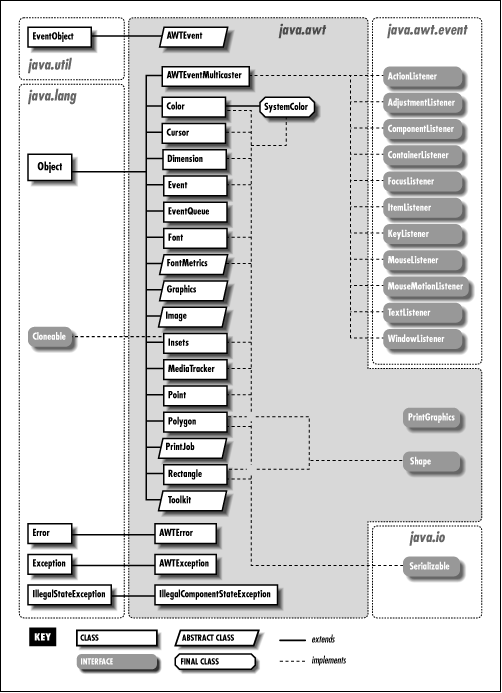
The classes you'll use for drawing come from the
java.awt package, as shown in
Figure 16.1.[1]
[1] The current set of drawing tools has many limitations. In the near future, JavaSoft will be releasing packages for advanced 2D graphics, which will have much greater capabilities. A 3D package is also planned.
An instance of the java.awt.Graphics class is
called a graphics context. It represents a
drawable surface such as a component's display area or an off-screen
image buffer. A graphics context provides methods for performing all
basic drawing operations on its area, including the painting of image
data. We call the Graphics object a graphics
context because it also holds contextual information about the drawing
area. This information includes the drawing area's
clipping region, painting color, transfer mode, and text font. If you
consider the drawing area to be a painter's canvas, you might think of
a graphics context as an easel that holds a set of tools and marks off
the work area.
There are four ways you normally acquire a
Graphics
object. Roughly, from most common to least, they are as follows:
From AWT, as the result of a painting request. In
this case, AWT acquires a new graphics context for
the appropriate area and passes it to your component's
paint() or update() method.
Directly from an off-screen image buffer. In this case, we ask the image buffer for a graphics context directly. We'll use this when we discuss techniques like double buffering.
By copying an existing Graphics object. Duplicating
a graphics object can be useful for more elaborate drawing operations;
different copies of a Graphics object draw into the
same area on the screen, but can have different attributes and
clipping regions.
Directly from an on-screen component. It's possible to ask a
component to give you a Graphics object for its
display area. However, this is almost always a mistake; if you feel
tempted to do this, think about why you're trying to circumvent
the normal paint()/repaint()
mechanism.
Each time a component's update() or
paint() method is called, AWT
provides the component with a new Graphics object
for drawing in the display area. This means that attributes we set
during one painting session, such as drawing color or clipping region,
are reset the next time paint() or
update() is called. (Each call to
paint() starts with a tidy new easel.) For the most
common attributes, like foreground color, background color, and font,
we can set defaults in the component itself. Thereafter, the graphics
contexts for painting in that component come with those properties
initialized appropriately.
If we are working in a component's
update() method, we can assume our on-screen
artwork is still intact, and we need only to make whatever changes are
needed to bring the display up to date. One way to optimize drawing
operations in this case is by setting a clipping region, as
we'll see shortly. If our paint() method is
called, however, we have to assume the worst and redraw the entire
display.
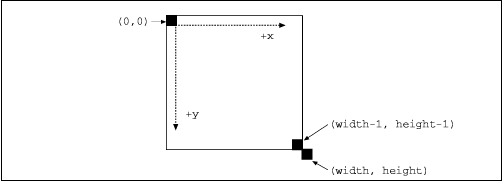
Methods of the Graphics class operate in a standard
coordinate system. The origin of a newly created graphics context is
the top left pixel of the component's drawing area, as shown in
Figure 16.2, which illustrates the default coordinate system. The point
(0,0) is at the top left corner of the drawing area; the point (width,
height) is just outside the drawing area at the bottom right corner.
The point at the bottom right corner within the drawing area has
coordinates (width-1, height-1). This gives you a drawing area that is
width pixels wide and
height pixels high.
The coordinate system
can be translated (shifted) with the translate()
method to specify a new point as the origin.
The drawable area of the graphics context can be limited to a
region with the setClip() method.
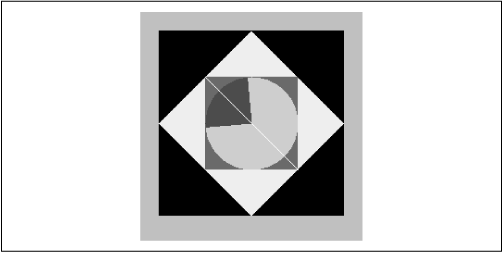
The basic drawing and painting methods should seem familiar to
you if you've done any graphics programming. The following
applet, TestPattern, exercises most of the simple
shape drawing commands; it's shown in Figure 16.3.
import java.awt.*;
import java.awt.event.*;
public class TestPattern extends java.applet.Applet {
    int theta = 45;
    public void paint( Graphics g ) {
        int Width = size().width;
        int Height = size().height;
        int width = Width/2;
        int height = Height/2;
        int x = (Width - width)/2;
        int y = (Height- height)/2;
        int [] polyx =  { 0, Width/2, Width, Width/2 };
        int [] polyy =  { Height/2, 0, Height/2, Height };
        Polygon poly = new Polygon( polyx, polyy, 4 );

        g.setColor( Color.black );
        g.fillRect( 0, 0, size().width, size().height );
        g.setColor( Color.yellow );
        g.fillPolygon( poly );
        g.setColor( Color.red );
        g.fillRect( x, y, width, height );
        g.setColor( Color.green );
        g.fillOval( x, y, width, height );
        g.setColor( Color.blue );
        int delta = 90;
        g.fillArc( x, y, width, height, theta, delta );
        g.setColor( Color.white );
        g.drawLine( x, y, x+width, x+height );
    }
    public void init() {
        addMouseListener( new MouseAdapter() {
            public void mousePressed( MouseEvent e ) {
                theta = (theta + 10) % 360;
                repaint();
            }
        } );
    }
}
TestPattern draws a number of simple shapes and
responds to mouse clicks by rotating the filled arc and
repainting. Compile it and give it a try. If you click repeatedly on
the applet, you may notice that everything flashes when it
repaints. TestPattern is not very intelligent about
redrawing; we'll examine some better algorithms in the upcoming
section on drawing techniques.
With the exception of fillArc() and
fillPolygon(), each method takes a simple
x, y coordinate for the top left
corner of the shape and a width and
height for its size. We have picked values that
draw the shapes centered, at half the width and height of the applet.
The most interesting shape we have drawn is the
Polygon, a yellow diamond. A
Polygon object is specified by two arrays that
contain the x and y coordinates
of each vertex. In our example, the coordinates of the points in the
polygon are (polyx[0],
polyy[0]), (polyx[1],
polyy[1]), and so on. There are simple drawing
methods in the Graphics class that take two arrays
and draw or fill the polygon, but we chose to create a
Polygon object and draw it instead. The reason is
that the Polygon object has some useful utility
methods that we might want to use later. A Polygon
can, for instance, give you its bounding box and tell you if a given
point lies within its area.
AWT also provides a Shape interface, which
is implemented by different kinds of 2D objects.
Currently, it is
implemented only by the Rectangle and
Polygon classes, but it may be a sign of
things to come, particularly when JavaSoft releases the extended 2D
drawing package. The setClip() method of
the Graphics class takes a
Shape as an argument, but for the time
being, it works only if that Shape is a
Rectangle.
The fillArc() method requires six integer
arguments. The first four specify the bounding box for an
oval--just like the fillOval() method. The
final two arguments specify what portion of the oval we want to draw,
as a starting angle and an offset. Both the starting angle and the
offset are specified in degrees. Zero degrees is at three
o'clock; a positive angle is clockwise. For example, to draw the
right half of a circle, you might call:
g.fillArc(0, 0, radius * 2, radius * 2, -90, 180);
Table 16.1 shows the shape-drawing methods of
the Graphics class. As you can see, for each of
the fill() methods in the example,
there is a corresponding draw() method that renders
the shape as an unfilled line drawing.
| Method | Description |
|---|---|
draw3DRect() | Draws a highlighted, 3D rectangle |
drawArc() | Draws an arc |
drawLine() | Draws a line |
drawOval() | Draws an oval |
drawPolygon() | Draws a polygon, connecting endpoints |
drawPolyline() | Draws a line connecting a polygon's points |
drawRect() | Draws a rectangle |
drawRoundRect() | Draws a rounded-corner rectangle |
fill3DRect() | Draws a filled, highlighted, 3D rectangle |
fillArc() | Draws a filled arc |
fillOval() | Draws a filled oval |
fillPolygon() | Draws a filled polygon |
fillRect() | Draws a filled rectangle |
fillRoundRect() | Draws a filled, rounded-corner rectangle |
draw3DRect() automatically chooses colors by
"darkening" the current color. So you should set the color to
something other than black, which is the default (maybe gray or
white); if you don't, you'll just get black on both sides. For an
example, see the PictureButton in Chapter 14.
A few important drawing methods are missing from
Table 16.1: for example, the
drawString() method, which draws text, and the
drawImage() method, which draws an image. We'll
discuss these methods in detail in later sections.
|  | |
| 15.7 Absolute Positioning? |  | 16.2 Colors |
