 | Chapter 15 |  |

| Chapter 15 | |
Contents:
FlowLayout
GridLayout
BorderLayout
CardLayout
GridBagLayout
Nonstandard Layout Managers
Absolute Positioning?
A layout manager arranges the child components of a container, as shown in Figure 15.1. It positions and sets the size of components within the container's display area according to a particular layout scheme. The layout manager's job is to fit the components into the available area while maintaining the proper spatial relationships between the components. AWT comes with a few standard layout managers that will collectively handle most situations; you can make your own layout managers if you have special requirements.
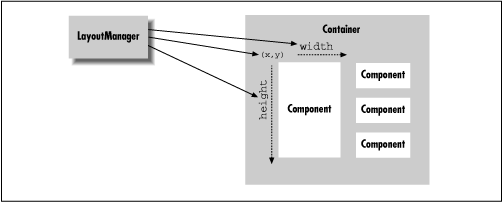
Every container has a default layout manager; therefore, when
you make a new container, it comes with a
LayoutManager object of the appropriate type. You
can install a new layout manager at any time with the
setLayout() method. We set the layout
manager of a container to a BorderLayout:
setLayout ( new BorderLayout() );
Notice that we call the BorderLayout constructor,
but we don't even save a reference to the layout manager. This
is typical; once you have installed a layout manager, it does its work
behind the scenes, interacting with the container. You rarely call the
layout manager's methods directly, so you don't usually need a
reference (a notable exception is CardLayout).
However, you do need to know what the layout manager is going to do with
your components as you work with them.
The LayoutManager is
consulted whenever a container's doLayout() method is called (usually when
it is validated) to reorganize the contents. It does its job by calling the
setLocation() and
setBounds() methods of the individual child
components to arrange them in the container's display area.
A container is laid out the first time it is displayed, and
thereafter whenever
the container's validate() method is called.
Containers that are a subclass of the Window class
(which include Frame) are automatically
validated whenever they are packed or resized. Calling
pack() sets the window's size so it is as
small as possible while holding all its components at their preferred
sizes.
Every component determines three important pieces of information used by
the layout manager in placing and sizing it:
a minimum size, a maximum size, and a preferred size.
These are reported by the
getMinimumSize(),
getMaximumSize(), and
getPreferredSize() methods of
Component, respectively. For example, a plain
Button object can normally be sized to any
proportions. However, the button's designer can provide a preferred size
for a good-looking button. The layout manager might use
this size when there are no other constraints, or it might ignore it,
depending on its scheme. Now if we give the button a label, the
button may need a minimum size in order to display itself
properly. The layout manager might show more respect for the
button's minimum size and guarantee that it has at least that
much space. Similarly, a particular component might not be able to display
itself properly if it is too large (perhaps it has to scale up an image);
it can use getMaximumSize() to report the
largest size it considers acceptable.[1]
[1] Unfortunately, the current set of layout managers doesn't do anything with the maximum size. This may change in a future release.
The preferred size of a Container object has
the same meaning as for any other type of component. However, since a
Container may hold its own components and want to
arrange them in its own layout, its preferred size is a function of
its layout manager. The layout manager is therefore involved in
both sides of the issue. It asks the components in its container for
their preferred (or minimum) sizes in order to arrange them. Based on
those values, it calculates the preferred size that is reported by
its own container to that container's parent.
When a layout manager is called to arrange its components,
it is working within a fixed area. It usually begins by looking at its
container's dimensions, and the preferred or minimum sizes of
the child components. It then doles out screen area and sets the sizes
of components according to its scheme. You can override the
getMinimumSize(),
getMaximumSize(), and
getPreferredSize() methods of a component, but you
should do this only if you are actually specializing the component, and
it has new needs. If you find yourself fighting with a layout manager
because it's changing the size of one of your components, you are
probably using the wrong kind of layout manager or not composing your
user interface properly. Remember that it's possible to use a number of
Panel objects in a given display, where each one
has its own LayoutManager. Try breaking down the
problem: place related components in their own
Panel and then arrange the panels in the
container. When that becomes too complicated, you can choose to use a constraint-based layout manager like GridBagLayout,
which we'll discuss later in this chapter.
FlowLayout is a simple layout manager that tries to
arrange components with their preferred sizes, from left to right and
top to bottom in the display. A FlowLayout can have
a specified justification of LEFT,
CENTER, or RIGHT, and a fixed
horizontal and vertical padding. By default, a flow layout uses
CENTER justification, meaning that all components
are centered within the area allotted to
them. FlowLayout is the default for
Panel components like Applet.
The following applet adds five buttons using the default
FlowLayout; the result is shown in Figure 15.2.

import java.awt.*;

public class Flow extends java.applet.Applet {
    public void init() {
        // Default for Applet is FlowLayout
        add( new Button("One") );
        add( new Button("Two") );
        add( new Button("Three") );
        add( new Button("Four") );

        add( new Button("Five") );
    }
}
If the applet is small enough, some of the buttons spill over to a second or third row.
|  | |
| 14.9 Creating Custom Components |  | 15.2 GridLayout |
