 | Chapter 13 The Abstract Window Toolkit |  |

| Chapter 13 The Abstract Window Toolkit | |
Now that you understand components a little better, our discussion of
containers should be easy.
A container is a kind of component that holds and manages other
AWT components. If you look back to
Figure 13.1, you
can see the part of the java.awt class hierarchy
that descends from Container.
Three of the most useful Container types are
Frame, Panel,
and Applet.
A Frame is a top-level window on your
display. Frame is derived from
Window, which is pretty much the same but lacks a
border. A Panel is a generic container element used
to group components inside of Frames and other
Panels.
The Applet class is a kind of
Panel that provides the foundation for
applets that run inside Web browsers.
As a Panel, an
Applet has the ability to contain other
user interface components. All these classes are subclasses of the
Container class. You can also use the
Container class directly, like a
Panel, to hold
components inside of another container. This is called a lightweight
container and is closely related to lightweight components.
Because a Container is a kind of
Component, it has all of the methods of
the Component class, including the
graphical and event-related methods we're
discussing in this chapter. But a container also maintains a
list of "child" components, which are the components it manages, and
therefore has methods for dealing with those components. By
themselves, most components aren't very useful until they are added to
a container and
displayed. The add()
method of the Container class adds a component to
the container. Thereafter, this component can be displayed in the
container's area and positioned by its layout manager. You can also
remove a component
from a container with the remove() method.
A layout manager is an object that controls the
placement and sizing of components within the display area of a
container. A layout manager is like a window manager in a display
system; it controls where the components go and how big they
are. Every container has a default layout manager, but you can easily
install a new one by calling the container's
setLayout() method.
AWT comes with a few layout managers that
implement common layout schemes. The default layout manager for a
Panel is a
FlowLayout, which
tries to place objects at their preferred size from left to right and
top to bottom in the container. The default for a
Frame is a
BorderLayout, which
places a limited number of objects at named locations like
"North," "South," and "Center." Another layout
manager, the GridLayout, arranges components in a
rectangular grid. The most general (and difficult to use) layout manager
is GridBagLayout, which lets you do the
kinds of things you can do with
HTML tables. We'll get into the details of all of these layout managers
in Chapter 15.
As I mentioned earlier, you normally call
add() to add a component to a container. There is
an overloaded version of add() that you may
need, depending on what layout manager you're using.
You'll often use the version of add() that takes a
single Component as an argument. However, if
you're using a layout manager that uses "constraints,"
like BorderLayout or GridBagLayout, you need to
specify additional information about where to put the new component.
For that you can use the version that takes a constraint object:
add( Component component, Object constraint);
For example, to add a component to the top of a
BorderLayout, you might say:
add( newComponent, "North");
In this case, the constraint object is the string "North." The
GridBagLayout uses a much more complex
constraint object to specify positioning.
Insets specify a container's margins; the space specified by the
container's insets won't be used by a layout manager. Insets are
described by an Insets object, which has
four int fields:
top, bottom,
left, and
right. You normally don't need to worry
about the insets; the container will set them automatically, taking
into account extras like the menu bar that may appear at the top of a
frame. However, you should modify the insets if you're doing something
like adding a decorative border (for example, a set of
"index tabs" at the top of a container) that reduces the space
available for components. To change the insets, you override the
component's getInsets() method, which
returns an Insets object. For example:
//reserve 50 pixels at the top, 5 at the sides and 10 at the bottom
public Insets getInsets() {
    return new Insets (50,5,10,5);
}In most layout schemes, components are not allowed to overlap, but they can.
If they do, the order in which components were added to a container matters.
When components overlap they are "stacked" in the order in which they were
added: the first component added to the container is on top; the last
is on the bottom. To give you more control over stacking, two
additional forms of the add() method
take an additional
integer argument that lets you specify the component's exact position
in the container's stacking order.
A layout manager arranges the components in a container only when asked to. Several things can mess up a container after it's initially laid out:
Changing its size
Resizing or moving one of its child components
Adding, showing, removing, or hiding a child component
Container's
validate() method. validate() calls the Container's
doLayout() method, which asks the layout manager to
do its job. In addition, validate() also notes that
the Container has been fixed (i.e., it's valid
again) and looks at each child component of the container, recursively
validating any containers that are also messed up.So if you have an applet that contains a small
Panel--say a keypad holding some
buttons--and you change the size of the Panel
by calling its resize() method, you should also
call validate() on the applet. The applet's
layout manager may then reposition or resize
the keypad within the applet. It also
automatically calls validate() for the keypad, so
that it can rearrange its buttons to fit inside its new area.
There are two things you should note. First, all components,
not just containers, maintain a notion of when they are valid or
invalid. But most components (e.g., buttons) don't do anything
special when they're validated. If you have a custom component that wants
to be notified when it is resized, it might be best to make it a
container (perhaps a lightweight container) and do your work in the
doLayout() method.
Next, child containers are validated only if they are invalid.
That means that if you have an invalid
component nested inside a valid component and you validate a container
above them both, the invalid component may never be
reached. However, the invalidate() method
that marks a container as
dirty automatically marks parent containers as well, all the way up
the container hierarchy. So that situation should never happen.
A component gets its peer when it's added to a container.
Containers are associated with display devices through
Toolkit objects, and thus control the process of
peer creation. This means that you can't ask certain questions about a
component before it's placed in a container.
For example, you can't find out about a component's size or
its default font until the component knows where it's being displayed (until
it has its peer).
You probably also shouldn't be able to ask a component with no peer about other resources controlled by the peer, such as off-screen graphics areas and font metrics. Java's developers apparently thought this restriction too onerous, so container-less components are associated with the "default" toolkit that can answer some of these kinds of inquiries. In practice, the default toolkit is usually able to provide the right answer, because with current implementations of Java, the default toolkit is probably the only toolkit available. This approach may cause problems in the future, if Java's developers add the ability for different containers to have different toolkits.
The same issue (the existence of a component's peer) also comes up
when you are making your own kinds of
components and need access to some of these peer resources before you can
complete the setup. For example, suppose that you want to set the size or
some other feature of your component based on the default font used.
You can't complete this setup in your constructor because the peer doesn't
exist yet. The solution to all of these problems is proper use of the
addNotify() method. As its name implies,
addNotify() can be used to get
notification when the peer is created. You can override it to do your
own work, as long as you remember to call
super.addNotify() to complete the
peer creation. For example:
class FancyLabel  {
    FancyLabel() {
        // No peer yet...
    }
    public void addNotify() {
        super.addNotify();  // complete the peer creation
        // Complete setup based on Fonts
        // and other peer resources.
    }
}There are a few additional tools of the
Container class that we should mention:
Component[] getComponents()Returns the container's components in an array.
void list(PrintWriter out, int indent)Generates a list of the components in this container and writes them to
the specified PrintWriter.
Component getComponentAt(int x, int y)Tells you what component is at the specified coordinates in the container's coordinate system.
Finally, an important tool to be aware of is the
ContainerListener interface.
It lets you receive an event whenever a component is added to or removed from
a container. (It lets you hear the tiny cries of the component as it is
imprisoned in its container or torn away.)
You can use the ContainerListener
interface to automate the process of
setting up components when they are added to your container. For instance,
your container might need to register other kinds of event listeners with
its components to track the mouse or handle certain kinds of actions.
Windows and frames are the top-level containers for Java components.
A Window is simply a plain, graphical
screen that displays in your
windowing system. Windows have no frills; they are mainly suitable for
making "splash" screens and dialogs--things that limit the
user's control. Frame, on the other hand,
is a subclass of Window
that has a border and can hold a menu bar. Frames are under the control of
your window manager, so you can drag a frame around on the
screen and resize it, using the ordinary controls for your environment.
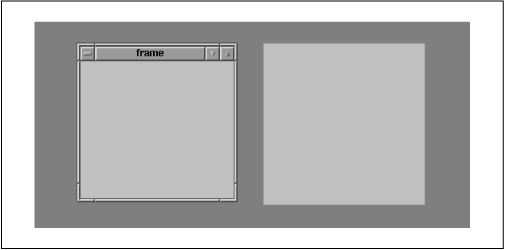
Figure 13.5 shows a Frame on the left and
a Window on the right.
All other components and
containers in Java must be held, at some level, inside of a
Window or
Frame.
Applets, as we've mentioned a few times, are a kind of
Panel. Even applets
must be housed in a Java frame or window, though normally
you don't see an applet's parent frame because it is part of (or
simply is) the browser or appletviewer displaying the applet.
A Frame is the only
Component that can be displayed
without being added or attached to another
Container.
After creating a Frame, you can call the
show() method to display it.
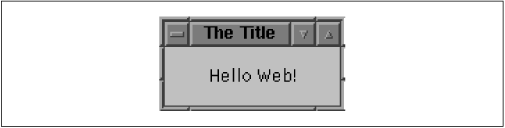
Let's create a standalone equivalent (see Figure 13.6) of our
HelloWeb applet from Chapter 2.
class HelloWebApp {
    public static void main( String [] args ) {
        Frame myFrame = new Frame("The Title");
        myFrame.add("Center", new Label("Hello Web!", Label.CENTER) );
        myFrame.pack();

        myFrame.show();
    }
}
Here we've got our minimal, graphical, standalone Java application.
The Frame constructor can take a
String argument that supplies a title,
displayed in the Frame's
title bar. (Another approach would be to create the
Frame with no title and call
setTitle() to supply the title later.)
After creating the Frame, we add our
Label to it and then call
pack(), which prepares the
Frame for display.
pack() does a couple of things, but its
most important effect
in this case is that it sets the size of the
Frame to the smallest
size required to hold all of its components. Specifically,
pack() calls:
setSize( preferredSize() );
Next, we call show() to get the
Frame onto the screen. The
show() method returns immediately, without
blocking. Fortunately, our application does not exit while the
Frame is showing.
To get rid of a Frame, call the
dispose() method. If you want to hide the
Frame temporarily, call
setVisible(false). You can check to see
if a Frame is showing with the
isShowing() method.
In this example, we let pack() set the
size of the Frame for us
before we show() it. If we hadn't, the
Frame would have come up at an
undefined size. If we instead want the
Frame to be a specific size
(not just hugging its child components) we could simply call
setSize() instead of
pack().
...
myFrame.setSize( 300, 300 );
myFrame.show();
The setLocation() method of the
Component class can be used on a
Frame or
Window to set its
position on the screen. The x and y coordinates are considered relative
to the screen's origin (the top left corner).
You can use the toFront() and
toBack() methods, respectively, to pull a
Frame or
Window to the front of other windows or
push it to the background.
By default, a user is allowed to resize a
Frame, but you can prevent resizing by
calling setResizable(false) before showing
the Frame.
On most systems, frames can be "iconified";
that is, they can be represented by a little icon image.
You can get and set a frame's icon image by calling
getIconImage() and
setIconImage().
As you can with all components, you set the cursor by
calling the setCursor() method.
Windows and frames have a slightly convoluted relationship. We said earlier that
Frame is a subclass of
Window. However, if you look, you'll see
that to
create a Window you have to have a
Frame available to serve as its parent.
The Window constructor takes a
Frame as an argument:
Window myWindow = new Window( myFrame );
The rationale for this limitation is long and boring. Suffice it to say that it will probably go away in the future.
Earlier we said that calling pack() on a
Frame sets the frame's size to the
preferred size of its layout. However, the
pack() method
is not simply equivalent to a call to
setSize().
pack() is often called before any of the
frame's components have their peers. Therefore, calling
pack() forces the container to choose its
Toolkit and
to create the peers of any components that have been added to it. After
that is done, the layout manager can reliably determine its preferred size.
For a large frame with lots of components, packing the frame is a convenient way to do this setup work in advance, before the frame is displayed. Whether this is useful depends on whether you'd rather have your application start up faster or pop up its frames faster once it is running.
|  | |
| 13.1 Components |  | 13.3 AWT Performance and Lightweight Components |
