 | Chapter 2 A First Applet |  |

| Chapter 2 A First Applet | |
Well, now that we have those concepts under control, we can move on to
some fun stuff. HelloWeb3 brings us a new graphical
interface component: the Button. We add a
Button component to our applet that changes the
color of our text each time the button is pressed. Our new example is
shown below:
import java.applet.Applet;
import java.awt.*;
import java.awt.event.*;
public class HelloWeb3 extends Applet
    implements MouseMotionListener, ActionListener {
    int messageX = 125, messageY = 95;
    String theMessage;
    Button theButton;
    int colorIndex = 0;
    static Color[] someColors = {
        Color.black, Color.red, Color.green, Color.blue, Color.magenta};

    public void init() {
        theMessage = getParameter("message");
        theButton = new Button("Change Color");
        add(theButton);
        addMouseMotionListener(this);
        theButton.addActionListener(this);
    }

    public void paint( Graphics gc ) {
        gc.drawString( theMessage, messageX, messageY );
    }
    public void mouseDragged( MouseEvent e ) {
        messageX = e.getX();
        messageY = e.getY();
        repaint();
    }
    public void mouseMoved( MouseEvent e ) { }
    public void actionPerformed( ActionEvent e ) {
        if ( e.getSource() == theButton ) {
            changeColor();
        }
    }
    synchronized private void changeColor() {
        if ( ++colorIndex == someColors.length )
            colorIndex = 0;
        setForeground( currentColor() );
        repaint();
    }
    synchronized private Color currentColor() {
        return someColors[ colorIndex ];
    }
}
Create HelloWeb3 just as the other applets and put
an <APPLET> tag referencing it in an
HTML document. An <APPLET>
tag just like the one for HelloWeb2 will do nicely.
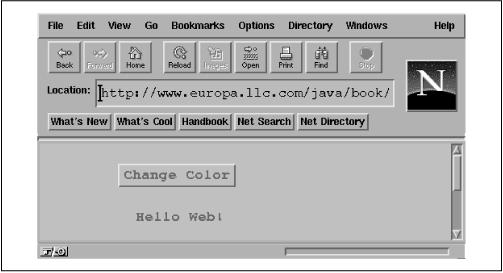
Run the example, and you should see the display shown in Figure 2.6. Drag the text. Each time you press the
button the color should change. Call your friends! They should be
duly impressed.
So what have we added this time? Well, for starters we have a new variable:
Button theButton;
The theButton variable is of type
Button and is going to hold an instance of the
java.awt.Button class. The
Button class, as you might expect, represents a
graphical button, which should look like other buttons in
your windowing system.
Two additional lines in init() create the
button and display it:
theButton = new Button("Change Color");
add(theButton);
The first line brings us to something new. The new
keyword is used to create an instance of a class. Recall that the
variable we have declared is just an empty reference and doesn't yet
point to a real object--in this case, an instance of the
Button class. This is a fundamental and
important concept. We have dealt with objects previously in our
examples. We have assigned them to variables, and we have called
methods in them. So far, however, these objects have always been
handed to us ready to go, and we have not had to explicitly create
them ourselves. In the case of our paint() method,
we were given a Graphics object with which to draw.
The system created this instance of the Graphics
class for our area of the screen and passed it to us in the parameter
variable gc. Our theMessage
variable is of type String, and we used it to hold a
String that was returned by the
getParameter() method. In each case, some other
method instantiated (created a new instance of) the class for us.
The closest we came to actually instantiating an object was when we
passed the name of the HTML
<APPLET> parameter as an argument to the
getParameter() method. In that case, we created
a String object and passed it as the
argument, but we did it in a rather sneaky fashion. As we mentioned
previously, String objects have special status in
the Java language. Because strings are used so frequently, the Java
compiler creates an instance of the String class
for us whenever it comes across quoted text in our source code.
String objects are, in all other respects, normal
objects.
The new operator provides the general mechanism for
instantiating objects. It's the feature of the Java language that
creates a new instance of a specified class. It arranges for Java to
allocate storage for the object and then calls the constructor method
of the objects' class to initialize it.
A constructor is a special method that is called to set up a new instance of a class. When a new object is created, Java allocates storage for it, sets variables to their default values, and then calls the constructor method for the class to do whatever application-level setup is required.
A constructor method looks like a method with the same name as its
class. For example, the constructor for the Button
class is called Button(). Constructors don't have
a return type; by definition they return an object of that class. But
like other methods, constructors can take arguments. Their sole
mission in life is to configure and initialize newly born class
instances, possibly using whatever information is passed to them in
parameters.
It's important to understand the difference between a
constructor and a method like our init() method.
Constructors are special methods of a class that help set up and
initialize an instance of a class when it's first created. The
init() method of the Applet
class serves a very similar purpose; however, it's quite different.
Constructors are a feature of the Java language. Every class,
including Applet, has constructors.
init(), however, is just a method of the
Applet class like any other. It's an
application-level phenomenon that happens to perform
initialization.
An object is created by using the new operator with
the constructor for the class and any necessary arguments. The
resulting object instance is returned as a value. In our example, we
create a new instance of Button and assign it to
our theButton variable:
theButton = new Button("Change Color"); This Button constructor takes a
String as an argument and, as it turns out, uses it
to set the label of the button on the screen. A class could also, of
course, provide methods that allow us to configure an object manually
after it's created or to change its configuration at a later time.
Many classes do both; the constructor simply takes its arguments
and passes them to the appropriate methods. The
Button class, for example, has a public method,
setLabel(), that allows us to set a
Button's label at any time. Constructors
with parameters are therefore a convenience that allows a sort of
shorthand to set up a new object.
We said this Button constructor
because there could be more than one. A class can have multiple
constructors, each taking different parameters and possibly using them
to do different kinds of setup. When there are multiple constructors
for a class, Java chooses the correct one based on the types of
arguments that are passed to it. We call the
Button constructor and pass it a
String argument, so Java locates the constructor
method of the Button class that takes a single
String argument and uses it to set up the object.
This is called method overloading. All methods
in Java, not just constructors, can be overloaded; this is one aspect
of the object-oriented programming principle of polymorphism.
A constructor method that takes no arguments is called the default constructor. As you'll see in Chapter 5, default constructors play a special role in the initialization of inherited class members.
We've told you how to create a new object with the
new operator, but we haven't said anything
about how to get rid of an object when you are done with it. If you
are a C programmer, you're probably wondering why not. The
reason is that you don't have to do anything to get rid of
objects when you are done with them.
The Java run-time system uses a garbage collection mechanism to deal with objects no longer in use. The garbage collector sweeps up objects not referenced by any variables and removes them from memory. Garbage collection is one of the most important features of Java. It frees you from the error-prone task of having to worry about details of memory allocation and deallocation.
We have used the terms component and
container somewhat loosely to describe graphical
elements of Java applications. However, you may recall from
Figure 2.3
that these terms are the names of actual classes in the
java.awt package.
Component is a base class from which all of
Java's GUI components are derived. It
contains variables that represent the location, shape, general
appearance, and status of the object, as well as methods for basic
painting and event handling. The familiar
paint() method we have been using in
our example is actually inherited from the
Component class. Applet is, of
course, a kind of Component and inherits all of its
public members, just as other (perhaps simpler) types of
GUI components do.
The Button class is also derived from
Component and therefore shares this
functionality. This means that the developer of the
Button class had methods like
paint()
available with which to implement the behavior of the
Button object, just as we did when creating our
applet.
What's exciting is that we are perfectly free to further
subclass components like Button and override their
behavior to create our own special types of user-interface components.
Both Button and Applet are, in
this respect, equivalent types of things. However, the
Applet class is further derived from a class called
Container, which gives it the added ability to hold
other components and manage them.
A Button object is a simple GUI
component. It makes sense only in the context of some larger
application. The Container class is an extended
type of Component that maintains a list of child
components and helps to group them. The Container
causes its children to be displayed and arranges them on the screen
according to a particular scheme. A Container
also commonly arranges to receive events related to its child components.
This gives us a great deal of flexibility in managing interface components.
We could, for example, create a smart button by
subclassing the Button class and overriding certain
methods to deal with the action of being pressed. Alternatively, we
could simply have the Button's container note
when the Button is pressed and handle the event
appropriately. In the interest of keeping our examples contained in a
single class, we are using the gestalt view and letting our
Button's container,
HelloWeb3, deal with its events.
Remember that a Container is a
Component too and, as such, can be placed alongside
other Component objects in other
Containers, in a hierarchical fashion, as shown in
Figure 2.7. Our HelloWeb3
applet is a kind of Container and can therefore
hold and manage other Java AWT components and
containers like buttons, sliders, text fields, and panels.
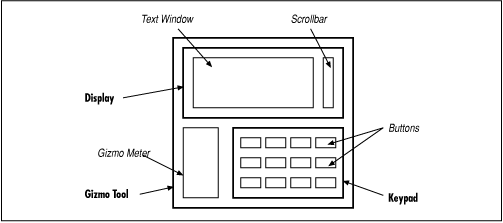
In Figure 2.7, the italicized items are
components, and the bold items are containers. The keypad is
implemented as a container object that manages a number of keys. The
keypad itself is contained in the GizmoTool
container object.
After creating the Button object, we'd like to
stick it in our applet. To do so, we invoke the
add() method of Applet, passing
the Button object as a parameter:
add(theButton);
add() is a method inherited by our
Applet from the Container class.
It appends our Button to the list of components
HelloWeb3 manages. Thereafter,
HelloWeb3 is responsible for the
Button: the applet causes the button to be
displayed, it determines where in our part of the screen the button
should be placed, and it receives events when the button is pushed.
Java uses an object called a LayoutManager to determine
the precise location in HelloWeb3's screen
area the Button is displayed. A
LayoutManager object embodies a particular scheme
for arranging components on the screen and adjusting their sizes.
You'll learn more about layout managers in Chapter 15. There are several standard layout managers to
choose from, and we can, of course, create new ones. In our case, we
have not specified a layout manager, so we get the default one, which
means our button appears centered at the top of the applet.
If you look up the add() method of the
Container class, you'll see that it takes a
Component object as an argument. But in our example
we've given it a Button object. What's
going on?
Well, if you check the inheritance diagram in Figure 2.3 again, you'll see that
Button is a subclass of the
Component class. Because a subclass is a kind of
its superclass and has, at minimum, the same public methods and
variables, we can use an instance of a subclass anywhere we use
an instance of its superclass. This is a very important concept, and
it's a second aspect of the object-oriented principle of
polymorphism. Button is a kind of
Component, and any method that expects a
Component as an argument will accept a
Button.
Now that we have a Button,
we need some way to communicate with it:
that is, to get the events it generates. We could just listen for
mouse clicks within the button and act accordingly. But that would be doing
the Button's job and we would be giving
up the advantages of using a prebuilt component. Instead, a Button
generates a special kind of event called an
ActionEvent
when someone actually uses it. To receive these events, we have added
another method to our class:
public void actionPerformed( ActionEvent e ) {
    if ( e.getSource() == theButton ) {
        changeColor();
    }
}
If you understood the previous applet, you shouldn't be surprised to
see that HelloWeb3 now declares that it
implements the ActionListener interface,
in addition to MouseMotionListener.
ActionListener requires us to implement an
actionPerformed() method, which is called
whenever an ActionEvent occurs. You also
shouldn't be surprised to see that we added a line to
init(), registering the applet as a
listener for the button's action events: this is the call to
theButton.addActionListener(this).
The actionPerformed() method takes care of
any action events that arise. First, it checks to make sure that the
event's source (the component generating the event) is what we think
it should be: theButton, the only button
we've put in the applet. This may seem superfluous; after all, what
else could possibly generate an action event? In this applet,
nothing. But it's a good idea to check, because another applet may
have several buttons, and you may need to figure out which one is
meant. Or you may add a second button to this applet later, and you
don't want the applet to break something. To check this, we call
the getSource() method of the
ActionEvent object,
e. Then we use the == operator to make
sure that the event source matches theButton. Remember that in Java,
== is a test for identity, not equality; it is true if the event
source and theButton are the same
object. The distinction between equality and identity is important. We
would consider two String objects to be
equal if they have the same characters in the same sequence. However,
they might not be the same object.
In Chapter 7, we'll look at the
equals() method, which tests for
equivalence. Once we establish that the event
e comes from the right button, we call our
changeColor() method, and we're finished.
You may be wondering why we don't have to change
mouseDragged() now that we have a
Button in our applet. The rationale is that the
coordinates of the event are all that matter for this method. We are
not particularly concerned if the event happens to fall within an area
of the screen occupied by another component. This means that you
can drag the text right through the Button and
even lose it behind the Button if you aren't
careful: try it and see!
To support HelloWeb3's colorful side we have
added a couple of new variables and two helpful methods. We create and
initialize an array of Color objects representing
the colors through which we cycle when the button is pressed. We also
declare an integer variable that serves as an index to this array,
specifying the current color:
Color[] someColors = {
    Color.black, Color.red, Color.green, Color.blue, Color.magenta };
int colorIndex;
A number of things are going on here. First let's look at the
Color objects we are putting into the array.
Instances of the java.awt.Color class represent
colors and are used by all classes in the java.awt
package that deal with color graphics. Notice that we are referencing
variables such as Color.black and
Color.red. These look like normal references to an
object's instance variables; however, Color is
not an object, it's a class. What is the meaning of this?
If you recall our discussion of classes and instances, we hinted then that a class can contain methods and variables that are shared among all instances of the class. These shared members are called static variables and static methods. The most common use of static variables in a class is to hold predefined constants or unchanging objects all of the instances can use.
There are two advantages to this approach. The more obvious advantage
is that static members take up space only in the class; the members
are not replicated in each instance. The second advantage is that
static members can be accessed even if no instances of the class
exist. A hypothetical Component class might have a
static variable called defaultColor. Some other
class that has to deal with this component, such as a special container,
might want to know the default color of such a component, even if
there aren't any around at the moment. Since
defaultColor is a static variable, the container
could get this information directly from the class.
An instance of the Color class represents a color.
For convenience, the Color class contains some
static, predefined color objects with friendly names like
green, red, and (our favorite)
magenta. Color.green is thus a
predefined Color object that is set to a green
color. In this case, these static members of Color
are not changeable, so they are effectively constants and can be
optimized as such by the compiler. Constant static members make up
for the lack of a #define construct in Java.
The alternative to using these predefined colors is to create a color
manually by specifying its red, green, blue (RGB) components using a
Color class constructor.
Next, we turn our attention to the array. We have declared a variable
called someColors, which is an array of
Color objects. Arrays are syntactically supported
by the Java language; however, they are true, first-class objects.
This means that an array is, itself, a type of object that knows how
to hold an indexed list of some other type of object. An array is
indexed by integers; when you index an array, the resulting value is
the object in the corresponding slot in the array. Our code uses the
colorIndex variable to index
someColors. It's also possible to have an array of
simple primitive types, rather than objects.
When we declare an array, we can initialize it by using the familiar
C-like curly brace construct. Specifying a comma-separated list of
elements inside of curly braces is a convenience that instructs the
compiler to create an instance of the array with those elements and
assign it to our variable. Alternatively, we could have just declared
our someColors variable and, later, allocated an
array object for it and assigned individual elements to that
array's slots. See Chapter 5 for a complete
discussion of arrays.
So, we now have an array of Color objects and a
variable with which to index them. What do we do with them? Well, we
have declared two private methods that do the actual work for us. The
private modifier on these methods specifies that
they can be called only by other methods in the same instance of the
class. They are not visible outside of the object. We declare members
to be private to hide the detailed inner workings
of a class from the outside world. This is called
encapsulation and is another tenet of
object-oriented design, as well as good programming practice. Private
methods are also often created as helper functions for use solely
within the class implementation.
The first method, currentColor(), is simply a
convenience routine that returns the Color object
representing the current text color. It returns the
Color object in the someColors
array at the index specified by our colorIndex
variable:
synchronized private Color currentColor() {
    return someColors[ colorIndex ];
}
We could just as readily have used the expression
someColors[colorIndex] everywhere we use
currentColor(); however, creating methods to wrap
common tasks is another way of shielding ourselves from the details of
our class. In an alternative implementation, we might have shuffled
off details of all color-related code into a separate class.
We could have created a class that takes an array of colors in its
constructor and then provided two methods: one to ask for the current
color and one to cycle to the next color (just some food for
thought).
The second method, changeColor(), is responsible
for incrementing the colorIndex variable to point
to the next Color in the array.
changeColor() is called from our
action() method whenever the button is pressed:
synchronized private void changeColor() {
    if ( ++colorIndex == someColors.length )
        colorIndex = 0;
    setForeground( currentColor() );
    repaint();
}
We increment colorIndex and compare it to the
length of the someColors array. All array objects
have a variable called length that specifies the
number of elements in the array. If we have reached the end of the
array, we reset our index to zero and start over. After changing the
currently selected color, we do two things. First, we call the
applet's setForeground() method, which
changes the color used to draw
text in the applet and the color of the button's label. Then we call
repaint() to cause the applet to be redrawn with
the new color for the draggable message.
So, what is the synchronized keyword that appears
in front of our currentColor() and
changeColor() methods? Synchronization has to do
with threads, which we'll examine in the next section. For now,
all you need know is that the synchronized
keyword indicates these two methods can never be running at the
same time. They must always run one after the other.
The reason is that in changeColor() we increment
colorIndex before testing its value. That means
that for some brief period of time while Java is running through
our code, colorIndex can have a value that is past
the end of our array. If our currentColor() method
happened to run at that same moment, we would see a run-time
"array out of bounds" error. There are, of course, ways
in which we could fudge around the problem in this case, but this
simple example is representative of more general synchronization
issues we need to address. In the next section, you'll see
that Java makes dealing with these problems easy through
language-level synchronization support.
|  | |
| 2.2 Hello Web! II: The Sequel |  | 2.4 Hello Web! IV: Netscape's Revenge |
