 | Chapter 14 Creating GUI Components |  |

| Chapter 14 Creating GUI Components | |
A Dialog is another standard feature of
user interfaces. In Java, a Dialog is a
kind of Window, which means that it's
really a container into which you put other components. A
Dialog can be either
modal or
nonmodal. A modal dialog
seizes the attention of the user by staying in the foreground and
grabbing all input until it is satisfied. A nonmodal dialog isn't
quite so insistent; you're allowed to do other things before dealing
with the dialog. Dialog
objects are useful for popup messages and queries or important
user-driven decisions.
Most of the components we've seen so far have some special kinds of
events associated with them. A Dialog
doesn't have any special events. Of course, this doesn't mean that a
dialog doesn't generate events. Since a dialog is a
Window, it can generate any event that a
Window can. However, there aren't any
special events, like action events or item events, to worry about.
When you're dealing with a Dialog, your
primary concern will be events generated by the components that you
put into the Dialog.
We'll do a quick example of a
Dialog window and then take a look at
FileDialog, a subclass of
Dialog that provides an easy-to-use file-selector
component.
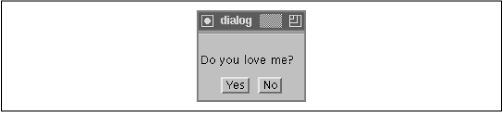
Our example will be a modal dialog that asks a simple question.
The heart of this example is a class called
ModalYesNoDialog that implements a simple
form with a question and two buttons. Figure 14.9 shows the dialog.
import java.awt.*;
import java.awt.event.*;
class ModalYesNoDialog extends Dialog implements ActionListener {
    private boolean isYes = false;
    ModalYesNoDialog( Frame frame, String question ) {
        super(frame, true /* modal */);
        Label label = new Label(question);
        label.setFont( new Font("Dialog",Font.PLAIN,20) );
        add( "Center", label );
        Panel yn = new Panel();
        Button button = new Button("Yes");
        button.addActionListener( this );
        yn.add( button );
        button = new Button("No");
        button.addActionListener( this );
        yn.add( button );
        add("South", yn);
        pack();
    }
    synchronized public boolean answer() {
        return isYes;
    }
    synchronized public void actionPerformed ( ActionEvent e ) {
        isYes = e.getActionCommand().equals("Yes");
        dispose();
    }
    public static void main(String[] s) {
        Frame f = new Frame();
        f.add( "Center", new Label("I'm the application") );
        f.add( "South", new Button("Can you press me?") );
        f.pack();
        f.show();
        ModalYesNoDialog query = new ModalYesNoDialog( f, "Do you love me?");
        query.show();
        if ( query.answer() == true )
            System.out.println("She loves me...");
        else
            System.out.println("She loves me not...");
    }
}
To create the
Dialog, our class's constructor calls its
superclass's constructor (super()), which is
Dialog(). When we create the dialog, we
must supply a parent Frame; we also
specify that the Dialog is modal.
The rest of the constructor--for that matter, the rest of the
class--doesn't have any surprises. We use a
Label to display the question; we add
a pair of buttons, labeled "Yes" and "No," for the user to give her answer. We provide an answer() method so
we can ask the dialog which button the user pushed; and we provide an
actionPerformed() method to receive the
button events.
The rest of our program is an application that uses the
ModalYesNoDialog. It creates a
Frame, creates the
ModalYesNoDialog, displays the dialog by
calling its show() method, and reads the
answer.
We used an application rather than an applet to demonstrate the
Dialog because dialogs are somewhat
unwieldy in applets. You need to have a
Frame to serve as the dialog's parent, and
most applets don't need frames. However, there's a simple workaround.
There's no reason an applet can't use an invisible frame: just create
a Frame, call its
pack() method, but never call its
show() method. The
Frame won't be displayed but will be able
to serve as the parent to a dialog box.
Now let's talk briefly about nonmodal dialogs. The most obvious change is in the constructor. Now you call:
new Dialog(myFrame, false);
But there are a few other issues to think about. Using a nonmodal
dialog is slightly more complex because it's asynchronous: the program
doesn't wait until the user responds. Therefore, you might want to
modify the answer() method so that it
calls wait() to wait until the user
replies. The code would look like this:
// add a new boolean for the answer() method
private boolean isAnswered = false;
// add a wait() in the answer() method
synchronized public boolean answer() {
    while ( !isAnswered )
        try { wait(); } catch (InterruptedException e) { /* error */ }
    return isYes;
}
If you do this, you also need to modify
actionPerformed() to call
notifyAll() and terminate the
wait():
    // add a notify() in the actionPeformed() method
    synchronized public void actionPerformed ( ActionEvent e ) {
        isYes = e.getActionCommand().equals("Yes");
        isAnswered = true;
        notifyAll();
        dispose();
    }
}
A FileDialog is a standard file-selection box. As
with other AWT components, most of
FileDialog is implemented in the native part of the
AWT toolkit, so it looks and acts like a standard
file selector on your platform.
Selecting files all day can be pretty boring without a
greater purpose, so we'll exercise the
FileDialog in a mini-editor
application. Editor provides a text area in which
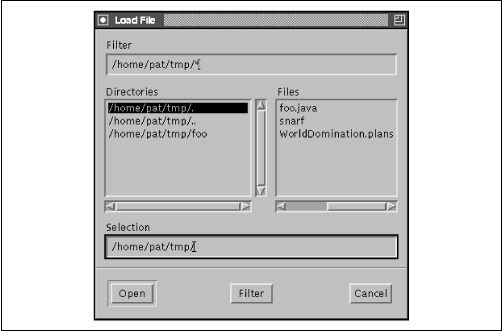
we can load and work with files. (The FileDialog created by
Editor is shown in
Figure 14.10.) We'll stop just shy of the
capability to save and let you fill in the blanks (with a few
caveats):
import java.awt.*;
import java.awt.event.*;
import java.io.*;
class Editor extends Frame implements ActionListener {
    TextArea textArea = new TextArea();
    Editor() {
        super("Editor");
        setLayout( new BorderLayout() );
        add("Center", textArea);
        Menu menu = new Menu ("File");
        menu.add ( makeMenuItem ("Load") );
        menu.add ( makeMenuItem ("Save") );
        menu.add ( makeMenuItem ("Quit") );
        MenuBar menuBar = new MenuBar();
        menuBar.add ( menu );
        setMenuBar( menuBar );
        pack();
    }
    public void actionPerformed( ActionEvent e ) {
        String command = e.getActionCommand();
        if ( command.equals("Quit") )
            dispose();
        else if ( command.equals("Load") )
            loadFile();
        else if ( command.equals("Save") )
            saveFile();
    }
    private void loadFile () {
        FileDialog fd = new FileDialog( this, "Load File", FileDialog.LOAD );
        fd.show();
        String file = fd.getFile();
        if ( file == null ) // Cancel
            return;
        try {
            FileInputStream fis = new FileInputStream ( fd.getFile() );
            byte [] data = new byte [ fis.available() ];
            fis.read( data );
            textArea.setText( new String( data ) );
        } catch ( IOException e ) {
            textArea.setText( "Could not load file..." );
        }
    }
    private void saveFile() {
        FileDialog fd = new FileDialog( this, "Save File", FileDialog.SAVE );
        fd.show();
        // Save file data...
    }
    private MenuItem makeMenuItem( String name ) {
        MenuItem m = new MenuItem( name );
        m.addActionListener( this );
        return m;
    }
    public static void main(String[] s) {
        new Editor().show();
    }
}
Editor is a
Frame that lays
itself out with a TextArea and a pull-down
menu. From the pull-down File menu, we
can opt to Load,
Save, or Quit. The
action() method catches the events associated with
these menu selections and takes the appropriate action.
The interesting parts of Editor are the
private methods
loadFile() and
saveFile().
loadFile() creates
a new FileDialog with three parameters: a parent
frame (just as in the previous Dialog
example), a title, and a directive. This parameter should be
one of the FileDialog class's
static identifiers
LOAD or SAVE,
which tell the dialog
whether to load or save a file.
A FileDialog does its work when the
show() method is called. Unlike most components,
its show() method blocks the caller until it
completes its job; the file selector then disappears. After that, we
can retrieve the designated filename with the
FileDialog's getFile()
method.
In loadFile(), we use a fragment of code
from Chapter 10 to get the
contents of the named file. We then add
the contents to the TextArea with
setText(). You can use
loadFile() as a road map for the unfinished
saveFile() method, but it would be prudent to add
the standard safety precautions. For example, you could use the
previous YesNo example to prompt the user before
overwriting an existing file.
|  | |
| 14.7 ScrollPane and Scrollbars |  | 14.9 Creating Custom Components |
