 | Chapter 18 Java Beans |  |

| Chapter 18 Java Beans | |
Now that you have the feel from the user's perspective, let's build some Beans. In this section we will become the Magic Beans company. We will create some Beans, package them for distribution, and use them in the BeanBox to build a very simple application.
The first thing to note is that absolutely anything can be a Bean. Even the class below is a Bean, albeit an invisible one:
public class Trivial implements java.io.Serializable {}Of course, this Bean isn't very useful: it doesn't have any properties, and it doesn't do anything. But it's a Bean, nonetheless. It's important to realize that JavaBeans really doesn't give a hard and fast definition for what a Bean is required to be. In practice though, we'll want Beans that are a little more useful.
We created a nifty Dial component in
Chapter 14. What would it take to turn
it into a Bean? Well, surprise, it is already a Bean! As I said,
there are very few requirements placed on Beans. Furthermore, the
Dial has a number of properties that it
exposes in the way prescribed by JavaBeans. A "get" method retrieves the value of a property; for example,
getValue() retrieves the dial's current
value. Likewise, a "set" method
(setValue()) modifies the dial's value.
The dial has two other properties, which also have "get" and "set"
methods: "minimum" and "maximum." This
is all the Dial needs to do to inform a
tool like BeanBox what properties it has and how to work with them.
In addition, Dial is a
lightweight component, and if you look, you'll see that the
Component class follows the same rules for
its important properties (for example, its font).
Now we know that Dial is already a Bean;
in order to use it, we have to put it in our
magicbeans package and store it in a JAR
file that can be loaded by the BeanBox. This is easy. Create a
directory called magicbeans to hold our Beans, add a
package statement to each class, put the
source (.java) files into the magicbeans directory,
and compile them to create class files.
Next, we need to create a manifest that tells the BeanBox which of the classes in the JAR file are Beans and which are support files or unrelated. At this point, we only have one Bean, Dial.class, so we create the following file called magicbeans.manifest:
Name: magicbeans/Dial.class
Java-Bean: True
The Name: label identifies the class file
as it will appear in the JAR:
magicbeans/Dial.class. Fields
appearing after the name and before an empty line apply to that item.
(See the section on JARs and manifest files in Chapter 3 for more
details.) We have added the attribute Java-Bean:
True, which flags this class as a Bean to tools that
read the manifest. We will add an entry like this for each Bean in
our package. We don't need to flag support classes (like
DialEvent and
DialListener) as Beans, because we won't
want to manipulate them directly with the BeanBox; in fact,
we don't need to mention them in the manifest at all. The
jar utility will add appropriate entries for them
automatically.
To create the JAR file, including our manifest information, give the following command:
% jar cvmf magicbeans.manifest magicbeans.jar magicbeans/*.class
Now we can load our JAR into the BeanBox using the Load JAR option
under the File menu. Use the File dialog to locate our JAR and select
it. An entry for Dial should appear in
the Bean palette. We have loaded our first Bean! Drop an instance of
Dial Bean into the BeanBox.
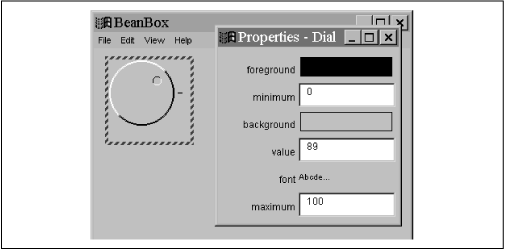
As Figure 18.7 shows, the dial's properties ("value," "minimum," and "maximum")
are on the properties sheet and can be modified by the BeanBox.
We're almost there. But these properties are not very useful to other
Beans unless we can notify them when the dial's value changes. We
need to make "value" a bound property by firing
PropertyChangeEvents when the value
changes. As you'll
recall, our Bean already fires special
DialEvents when we change the
value, so it won't be hard to add
PropertyChangeEvents.
Add the following code to the Dial class:
package magicbeans;

import java.beans.*;

public class Dial extends Component {
    ...

    private PropertyChangeSupport propChanges = new PropertyChangeSupport(this);

    public void addPropertyChangeListener(PropertyChangeListener listener) {
        propChanges.addPropertyChangeListener(listener);
    }
    public void removePropertyChangeListener(PropertyChangeListener listener) {
        propChanges.removePropertyChangeListener(listener);
    }
}
And insert the firePropertyChange
statement below as the first line of the
Dial's
fireEvent() method:
    private void fireEvent() {
        propChanges.firePropertyChange( "value", null, new Integer(value));
		...
	}
That's all it takes to make Dial a source
of PropertyChangeEvents. We use the
java.beans.PropertyChangeSupport class,
which does all the work for us (registering listeners, unregistering
listeners, and sending the actual events); you can pretty much copy the code
above into any Beans you create.
PropertyChangeSupport is analogous to the
AWTEventMulticaster that we used to help
us fire AWT events in Chapter 14. We have added the necessary
addListener() and
removeListener() methods so that
Dial can
register objects that want to receive
PropertyChangeEvents. In these methods,
we simply delegate the calls to the
PropertyChangeSupport object and let it
keep track of them for us. To fire an event, we use
propChanges's
firePropertyChange() method.
The firePropertyChange() method takes
three arguments: the name of the property and
the old and new values. In our case we don't keep track of the old
value, so we are allowed to set that parameter to
null. It may seem
superfluous to send both the old and new
values, but there is one bonus when we do: the
firePropertyChange() method doesn't
generate an event if the value has not actually changed. This saves
us the trouble of implementing this logic over and over (and it is
important logic to prevent looping and other bad behavior). The
arguments to firePropertyChange() are
objects, so we have to wrap up properties of primitive types in their
appropriate wrapper objects. In this case, we use an
Integer because the "value" property has an
int value.
Now we're ready to put the Dial to use.
Recompile and re-JAR the
classes. Next, reload the Juggler example that we asked you to save
in the first section of this chapter. (Did you save it?) Add an
instance of our new magic Dial Bean to the scenario, as shown in Figure 18.8.
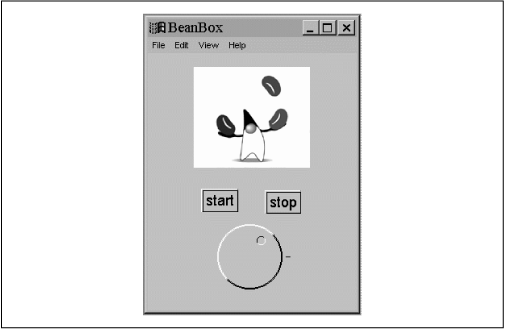
Let's try to bind the "value" property of the
Dial to the
"animationRate" of the Juggler. The Bind Property option should now
be available under the Edit menu because the BeanBox recognizes that we are a
source of PropertyChangeEvents. When you
complete the hookup, you should be able to vary the
speed of the juggler by turning the dial. Try changing the "maximum" and
"minimum" values of the dial to change the range.
I said earlier that tools like BeanBox found out about a Bean's properties by looking at its "get" and "set" methods. The easiest way to make properties visible is to follow these simple design patterns:
public propertyType getPropertyName()
public void setPropertyName( propertyType arg )
public boolean is PropertyName()
The last method is used only for properties with
boolean values and is optional.
So it turns out that the appropriate "set" and "get" methods for
these features of our Bean are already in the
Dial class, either directly or inherited
from java.awt.Component:
// Inherited from Component
public Color getForeground()
public void setForeground(Color c)

public Color getBackground()
public void setBackground(Color c)

public Font getFont()
public void setFont(Font f)

public String getName()
public void setName(String name)

// Part of the Dial itself
public int getValue()
public void setValue(int v)

public int getMinimum()
public void setMinimum(int m)

public int getMaximum()
public void setMaximum(int m)
One of the biggest changes between Versions 1.0 and 1.1 of Java was rewriting AWT in terms of these design patterns. For our Dial Bean, BeanBox uses the reflection API to find out about its methods (both its own and the methods it inherits); it then uses the design patterns to figure out what properties are available. When we use the properties sheet to change a value, the BeanBox dynamically invokes the correct "set" method to change the value.
But wait--if you look further at the
Component class, you'll notice
that other methods match the design pattern.
For example, what about the setCursor()
and getCursor() pair? Well, BeanBox
doesn't know how to display or edit a cursor, so it simply ignores
those properties in the properties sheet.
One more thought: BeanBox automatically pulls the property's name from the name of its accessor methods; it then "decapitalizes" the name for display on the properties sheet. For example, the "font" property is not listed as "Font". Later, I'll show how to provide a BeanInfo class that overrides the way these properties are displayed, letting you provide your own property names.
Finally, JavaBeans allows read-only and write-only properties, which are implemented by simply leaving out the "getter" or "setter" as desired.
Now that we have one nifty Bean for the Magic Beans products list, let's try to round out the set before we start advertising. Our goal is to build the Beans we need to make a very simple form. The application performs a simple calculation after you enter data. You could see this as an extremely primitive spreadsheet.
One thing that we will need in almost any application
is a plain old text label. Fortunately, the AWT's
Label class gives us
a head start. We'll package it up as a Bean as follows:
package magicbeans;

import java.awt.*;

public class TextLabel extends Label {

    public void setText( String s ) {
        super.setText( s );
        updateSize();
    }
    public void setFont( Font f ) {
        super.setFont( f );
        updateSize();
    }

    private void updateSize() {
        Container parent = getParent();
        if ( parent != null ) {
            invalidate();
            parent.validate();
        }
    }

    public void update( java.awt.Graphics g ) { }
}
Pretty much all of the contents of this class are refinements to make
the TextLabel work a little more smoothly
in a builder environment like BeanBox. Technically, we could have
gotten by with a trivial subclass of
Label, but it would have lacked
the immediate feedback that we like when changing properties. In
TextLabel, we override the two "set"
methods that might change the preferred size of the Label:
setText() and
setFont(). Our new methods call our
private
updateSize() method to
explicitly invalidate the Label and
validate its parent container, causing it to
lay out the Label again.[3]
We have also overridden the
AWT update() method, to prevent an
accidental repaint() from messing up our
component.[4]
[3] A proper implementation of
Labelshould probably invalidate itself when its preferred size changes.[4] Heavyweight AWT components like
Label,Button, etc., do not expect to have an explicit update scheduled viarepaint(). As you'll recall, the default implementation ofupdate()wipes the area to the background color, whether or not the component has a peer. For a lightweight component, this behavior is undesirable.
Go ahead, repackage and try out the label in the BeanBox. Don't
forget to add TextLabel.class to the manifest and to specify
that it is a Bean. Once you have the
TextLabel in the BeanBox, it should automatically
grow to accommodate changes in text and font. Notice the property
called "alignment" (which it inherited from the AWT
Label class); try changing its value to 1,
2, or 3, and see what happens.
Another component that we're sure to need in a form is a
text field that accepts numeric data. Let's build a text entry Bean
that accepts and validates numbers and makes the values available as a
property. You should recognize almost all of the parts of the
NumericField Bean:
package magicbeans;

import java.awt.*;
import java.awt.event.ActionEvent;
import java.beans.*;

public class NumericField extends TextField {
    private double value;
    private PropertyChangeSupport propChanges = new PropertyChangeSupport(this);

    public NumericField() {
        enableEvents( AWTEvent.ACTION_EVENT_MASK );
    }

    public void processActionEvent(ActionEvent e) {
        try {
            setValue( new Double( getText() ).doubleValue() );
        } catch ( NumberFormatException ex ) {
            select(0, getText().length());
        }
        super.processActionEvent(e);
    }

    public double getValue() {
        return value;
    }
    public void setValue( double newValue ) {
        double oldValue = value;
        setText( "" + newValue );
        propChanges.firePropertyChange("value",
            new Double(oldValue), new Double(newValue));
    }

    public void setColumns( int cols ) {
        super.setColumns( cols );
        Container parent = getParent();
        if ( parent != null ) {
            invalidate();
            parent.validate();
        }
    }

    public void addPropertyChangeListener(PropertyChangeListener listener) {
        propChanges.addPropertyChangeListener(listener);
    }
    public void removePropertyChangeListener(PropertyChangeListener listener) {
        propChanges.removePropertyChangeListener(listener);
    }

    public void update( Graphics g ) { }
}
NumericField extends the AWT's
TextField component; it's fairly similar
to our TextLabel. The heart of
NumericField is in the
processActionEvent() method. You'll
recall that a TextField generates
ActionEvents whenever the user presses
Return to enter the data. We catch those events and try to parse
the user's entry as a number, giving it a
Double value. If we succeed, we update
the "value" property using our setValue()
method. setValue() then fires a
PropertyChangeEvent to notify any
interested Beans. This means that
NumericField lets us bind its "value"
property. If the text doesn't parse properly as a number, we give
feedback to the user by selecting (highlighting) the text.
As with our TextLabel, we override a
method that might affect the
NumericField's size--setColumns()--and add code to validate our
container whenever the number of columns changes. You should be able
to change the "columns" property of the
NumericField and to adjust its size
dynamically. (We'll let you paste in the bit of code to handle
setFont() if you want.)
Verify the operation of NumericField by
placing two of them in the BeanBox and binding the "value" property of
one to the other. You should be able to enter a new floating point
value and see the change reflected in the other.
Finally, let's try our hand at an invisible Bean: one that performs a
calculation rather than providing part of a user interface.
Multiplier is a
simple invisible Bean that multiplies the values of two of its
properties (A and B) to produce the value of a third read-only
property (C). Here's the code:
package magicbeans;

import java.beans.*;

public class Multiplier implements java.io.Serializable {
    private double a, b, c;

    synchronized public void setA( double val ) {
        a = val;
        multiply();
    }
    synchronized public double getA() {
        return a;
    }
    synchronized public void setB( double val ) {
        b = val;
        multiply();
    }
    synchronized public double getB() {
        return b;
    }
    synchronized public double getC() {
        return c;
    }
    private void multiply() {
        double oldC = c;
        c = a * b;
        propChanges.firePropertyChange("c", new Double(oldC), new Double(c));
    }

    private PropertyChangeSupport propChanges = new PropertyChangeSupport(this);

    public void addPropertyChangeListener(PropertyChangeListener listener) {
        propChanges.addPropertyChangeListener(listener);
    }
    public void removePropertyChangeListener(PropertyChangeListener listener) {
        propChanges.removePropertyChangeListener(listener);
    }
}
The code is straightforward. Whenever the value of property A or B
changes, we call multiply(), which
multiplies their values and fires a
PropertyChangeEvent. So
Multiplier
supports binding of any of its properties.
Finally, let's demonstrate that we can put our Beans together in a
useful way. Arrange three TextLabels,
three NumericFields, and a
Multiplier
into the scene in Figure 18.9.
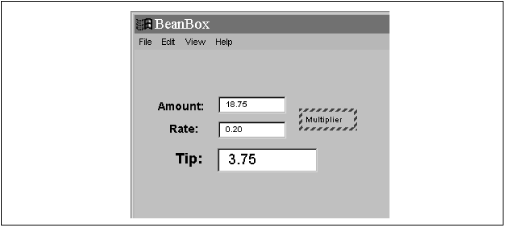
Bind the values of the first two
NumericFields to the A and B properties
of the Multiplier; bind the C value to the
third NumericField. Now
we have a simple calculator. You could use this as a tip
calculator, but it's important to realize that much more is possible.
Try some other arrangements. Can you
build a calculator that squares a number? Can you see how you might
build a simple spreadsheet?
Before moving on, save this work so that you can reuse it later. This time, use the BeanBox's Serialize component option to serialize the BeanBox container itself. To select the top-level BeanBox, click on the background of the workspace. The dashed line should appear around the entire BeanBox. Then use the Serialize component option to save your work. By serializing the BeanBox container, we save all of the Beans it contains and all of their interconnections. In a section later in this chapter, we'll show you how to put these to use.
So far, everything the BeanBox has known about our Beans has been
determined by low-level reflection--that is, looking at the methods of our
classes. The java.beans.Introspector
class analyzes and describes a Bean to any tool that wants to know
about it. The introspection process works only if we follow design
patterns that restrict what we call our methods; furthermore, it gives
us little control over exactly what properties and events appear in
the BeanBox menus. We have been forced to live with all of the stuff
that we inherit from the base AWT components, for example. We
can change all that by creating BeanInfo classes for our Beans.
A BeanInfo class lets us provide explicit information about our
properties, methods, and events; we can even use it to customize the
text that appears in the BeanBox's menus.
Technically, a BeanInfo class is required to implement the
BeanInfo interface. However, that's a
complicated proposition, particularly since in most situations, the
introspector's default behavior is reasonable. So instead of
implementing BeanInfo, we extend
SimpleBeanInfo, which is a utility that
implements all of BeanInfo's methods. We
can override specific methods to provide the information we want;
when we don't override a method, we'll get the introspector's default behavior.
In the next few sections, we'll develop a
DialBeanInfo class that provides explicit
information about our Dial Bean.
We'll start out by describing the Dial's
properties. To do so, we must implement the
getPropertyDescriptors() method. This
method simply returns an array of
PropertyDescriptor objects--one for every
property we want the development tool to know about.
To create a PropertyDescriptor, we call
its constructor with two arguments: the property's name and the
class. In the following code, we create descriptors for the
Dial's "value," "minimum," and "maximum"
properties. Then we call a few methods of the
PropertyDescriptor class to provide
additional information about each property. In this example, we call
the setBound() method to state that
"minimum" and "maximum" are not bound properties but that "value" is a
bound property. Our code also is prepared to catch an
IntrospectionException, which can occur if
something goes wrong while creating the property descriptors.
package magicbeans;

import java.beans.*;

public class DialBeanInfo extends SimpleBeanInfo {

    public PropertyDescriptor[] getPropertyDescriptors() {
        try {
            PropertyDescriptor value =
                new PropertyDescriptor("value", Dial.class);
            PropertyDescriptor minimum =
                new PropertyDescriptor("minimum", Dial.class);
            PropertyDescriptor maximum =
                new PropertyDescriptor("maximum", Dial.class);

            value.setBound(true);
            minimum.setBound(false);
            maximum.setBound(false);

            return new PropertyDescriptor [] { value, minimum, maximum };
        } catch (IntrospectionException e) {
            return null;
        }
    }
Perhaps the most interesting thing about
DialBeanInfo is that, by providing
explicit information for our properties, we automatically hide any
other properties that introspection might find. In other words, if
you don't provide any property information, a development tool like
BeanBox will find out about all sorts of properties, including
properties inherited from the superclass: when we loaded the
Dial into the BeanBox, we saw a number of
properties inherited from Component. If
you compile DialBeanInfo, package it with
the Dial, and load the resulting JAR file
into the BeanBox, you'll see that the
Component properties no longer appear in
the properties sheet.
Of course, a PropertyDescriptor can
provide a lot of other information about a property: it can provide
the names of the accessor methods, if you decide not to use the design
patterns; whether the property is constrained; and a class to
use as a property editor, if the standard property editors aren't
sufficient.
The Dial defines its own event: the
DialEvent. We'd like to tell development
tools about this event, so that we can build applications using it.
The process for telling the world about our event is similar to what
we did previously: we add a method to the
DialBeanInfo class called
getEventSetDescriptors(), which returns an
array of EventSetDescriptors.
There's just one minor complication: events are described in terms of
their listener interfaces, not in terms of the event classes
themselves. So our
getEventSetDescriptors() method creates a
descriptor for the DialListener interface.
We also have to tell the world that we generate
PropertyChangeEvents, so we create a
descriptor for the PropertyChangeListener.
Here's the code to add to the DialBeanInfo
class:
public class DialBeanInfo extends SimpleBeanInfo {
	...

    public EventSetDescriptor[] getEventSetDescriptors() {
        try {
            EventSetDescriptor dial = new EventSetDescriptor( Dial.class,
                "dialAdjusted", DialListener.class, "dialAdjusted");
            dial.setDisplayName("Dial Adjusted");

            EventSetDescriptor changed = new EventSetDescriptor( Dial.class,
                "propertyChange", PropertyChangeListener.class,
                "propertyChange" );
            changed.setDisplayName("Bound property change");

            return new EventSetDescriptor [] { dial, changed };
        } catch (IntrospectionException e) {
            return null;
        }
    }
In this method, we create two
EventSetDescriptor objects:
dial and
changed. The constructor for an
EventSetDescriptor takes four arguments:
the class that generates the event, the name of the event set (i.e.,
the name that will be displayed by default by a development tool), the
listener class, and the name of the method to which the event can be
delivered. (Other constructors let you deal with listener interfaces
that have several methods.) After creating these objects, we call the
setDisplayName() method to provide a more
friendly name to be displayed by development tools like the BeanBox.
Just as the property descriptors we supply hid the properties that
were discovered by reflection, the
EventSetDescriptors hide events that are
inherited from the Component class.
Therefore, when you recompile DialBeanInfo, package it in a JAR, and
load it into the BeanBox, you'll no longer see mouse events, action
events, and all the other AWT events. You will see only the two
events that we have explicitly described: our own
DialEvent and a
PropertyChangeEvent.
Again, once you have an
EventSetDescriptor, you can provide other
kinds of information about the event. In particular, you can state
that the event is "unicast," which means that it can only have one
listener.
Some of the Beans that come with the BeanBox are displayed on the
palette with a cute icon. This makes it easier for a nontechnical
user to identify which Bean he or she wants. Icon images are supplied
using the BeanInfo object we have been developing. To supply an icon,
implement the getIcon() method. You may
supply as many as four icons: they may be either 16 x 16 or 32 x 32,
and either color or monochrome. Here's the
getIcon() method for
DialBeanInfo:
public class DialBeanInfo extends SimpleBeanInfo {
	...

    public java.awt.Image getIcon(int iconKind) {

        if (iconKind == BeanInfo.ICON_COLOR_16x16) {
            return loadImage("DialIconColor16.gif");
        } else
        if (iconKind == BeanInfo.ICON_COLOR_32x32) {
            return loadImage("DialIconColor32.gif");
        } else
        if (iconKind == BeanInfo.ICON_MONO_16x16) {
            return loadImage("DialIconMono16.gif");
        } else
        if (iconKind == BeanInfo.ICON_MONO_32x32) {
            return loadImage("DialIconMono32.gif");
        }
        return null;
    }
This method is called with a constant indicating what kind of icon is
being requested; for example,
BeanInfo.ICON_COLOR_16x16 requests a 16 x
16 color image. If an appropriate icon is available, it loads the
image and returns an Image object. If the
icon isn't available, it returns null.
For convenience, you can package the images in the same JAR file as
the Bean and its BeanInfo class.
While we haven't used them, you can also use a BeanInfo object to
provide information about other public methods of your Bean, "indexed
properties" (i.e., array-valued properties), and other features.
JavaBeans also lets you provide a customizer for your Beans.
Customizers are objects that do advanced customization for a Bean as a
whole; they let you provide your own GUI for tweaking your Bean. (The
Select Bean uses a customizer rather than the standard properties
sheet.) I won't show you how to write a customizer; it's not too
difficult, but it's beyond the scope of this chapter.
Suffice it to say that a customizer must implement the
java.beans.Customizer interface, and
should extend Component so that it can be
displayed.
A property editor isn't quite as fancy as a customizer. Property
editors are a way of giving the properties sheet additional
capabilities. For example, you would supply a property editor to let
you edit a property type that is specific to your Bean. You could provide a property editor that would let you edit an
object's price in dollars and cents. We've already seen a couple of
property editors: the editor used for
Color-valued properties is fundamentally
no different from a property editor you might write yourself.
In addition, the Molecule Bean used a property editor to specify its
moleculeName property.
Again, describing how to write a property editor is beyond the
scope of this chapter. Briefly, a property editor must
implement the PropertyEditor interface; it
usually does so by extending the
PropertyEditorSupport class, which
provides default implementations for most of the methods.
|  | |
| 18.1 What's a Bean? |  | 18.3 Hand-Coding with Beans |
