 | Chapter 16 Drawing with AWT |  |

| Chapter 16 Drawing with AWT | |
Text fonts in Java are represented by instances of the
java.awt.Font class. A Font
object is constructed from a font name, style identifier, and a point
size. We can create a Font at any time, but it's
meaningful only when applied to a particular component on a given
display device. Here are a couple of fonts:
Font smallFont = new Font("Monospaced", Font.PLAIN, 10);
Font bigFont = new Font("Serif", Font.BOLD, 18);
The font name is a symbolic name for the font family. The following font names should be available on all platforms.[2]
[2] The names
Helvetica,TimesRoman,Courier,Symbol, andZapfDingbatsare supported in Java 1.1 for backwards compatibility but shouldn't be used; they may be removed in a future version.Symbols andZapfDingbats, which used to be available asFontnames have now taken their proper place as ranges in the Unicode character table: 2200-22ff and 2700-27ff, respectively.
Serif (generic name for TimesRoman)
SansSerif (generic name for Helvetica)
Monospaced (generic name for Courier)
Dialog
DialogInput
The font you specify is mapped to an actual font on the local platform. Java's fonts.properties files map the font names to the available fonts, covering as much of the Unicode character set as possible. If you request a font that doesn't exist, you get the default font.
You can also use the static method Font.getFont() to look up a font name in the system properties list. getFont() takes a String font property name, retrieves the font name from the Properties table, and returns the Font object that corresponds to that font. You can use this mechanism, as with Colors, to define fonts with properties from outside your application.
The Font class defines three
static style identifiers: PLAIN,
BOLD, and ITALIC. You can use
these values on all fonts. The point size determines the size of the
font on a display. If a given point size isn't available,
Font substitutes a default size.[3]
[3] There is no straightforward way to determine if a given
Fontis available at a given point size in the current release of Java. Fonts are one of Java's weak points. Sun has promised betterFonthandling (and perhaps true, portableFonts) as part of the 2D graphics package.
You can retrieve information about an existing Font
with a number of routines. The getName(),
getSize(), and getStyle() methods
retrieve the symbolic name, point size, and style, respectively. You
can use the getFamily() method to find out the platform-specific font
family to which the font actually maps.
Finally, to actually use a Font object, you can
simply specify it as an argument to the setFont()
method of a Component or
Graphics object. Subsequent text-drawing commands
like drawString() for that component or in that
graphics context use the specified font.
To get detailed size and spacing information for text rendered in a
font, we can ask for a java.awt.FontMetrics object.
Different systems will have different real fonts available; the
available fonts may not match the font you request. Thus, a
FontMetrics object presents information about a
particular font on a particular system, not general information about
a font. For example, if you ask for the metrics of a nine-point
Monospaced font, what you get isn't some abstract truth about
Monospaced fonts; you get the metrics of the font that the particular
system uses for nine-point Monospaced--which may not be exactly nine
point or even Monospaced.
Use the getFontMetrics() method for a
Component to retrieve the
FontMetrics for a Font as it
would appear for that component:
public void init() {
    ...
    // Get the metrics for a particular font on this component
    FontMetrics smallFont = myLabel.getFontMetrics( smallFont );
    ...
}
The Graphics object also has a
getFontMetrics() method that gets the
FontMetrics information for the current font in the
graphics context.
public void paint( Graphics g ) {
    // Get the metrics for the current font
    FontMetrics fm = g.getFontMetrics();
   ...
}
The following applet, FontShow, displays a word and
draws reference lines showing certain characteristics of its font, as
shown in Figure 16.4. Clicking in the applet
toggles the point size between a small and a large value.
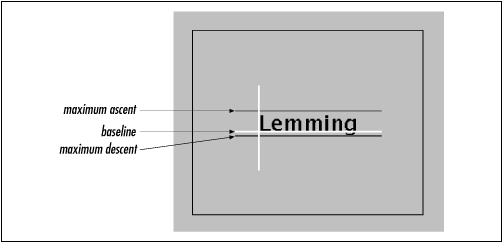
import java.awt.*;
import java.awt.event.*;
public class FontShow extends java.applet.Applet {
    static final int LPAD=25;   // Frilly line padding
    boolean bigFont = true;
    public void init() {
        addMouseListener( new MouseAdapter() {
            public void mouseClicked(MouseEvent e) {
                bigFont = !bigFont;
                repaint();
            }
        } );
    }
    public void paint( Graphics g ) {
        String message = getParameter( "word" );
        g.drawRect(0, 0, getSize().width-1, getSize().height-1);
        if ( bigFont )
            g.setFont( new Font("Dialog",Font.PLAIN,24) );
        else
            g.setFont( new Font("Dialog",Font.PLAIN,12) );
        FontMetrics metrics = g.getFontMetrics();
        int fontAscent = metrics.getMaxAscent ();
        int fontDescent = metrics.getMaxDescent();
        int messWidth = metrics.stringWidth ( message );
        // Center text
        int startX = getSize().width/2 - messWidth/2;
        int startY = getSize().height/2 - fontDescent/2 + fontAscent/2;
        g.drawString(message, startX, startY);
        g.setColor( Color.white );  // Base lines
        g.drawLine( startX-LPAD, startY, startX+messWidth+LPAD, startY );
        g.drawLine( startX, startY+ LPAD, startX, startY-fontAscent-LPAD );
        g.setColor( Color.green );  // Ascent line
        g.drawLine( startX-LPAD, startY-fontAscent,
                    startX+messWidth+LPAD, startY-fontAscent );
        g.setColor( Color.red );    // Descent line
        g.drawLine( startX-LPAD, startY+fontDescent,
                    startX+messWidth+LPAD, startY+fontDescent );
    }
}
Compile FontShow and run it with an applet tag
like the following:
<applet height=200 width=250 code=FontShow>
    <param name="word" value="Lemming">
</applet>
The word parameter specifies the text to be
displayed.
FontShow may look a bit complicated, but there's
really not much to it. The bulk of the code is in
paint(), which simply sets the font, draws our
word, and adds a few lines to illustrate some of the font's
characteristics (metrics). For fun we also catch mouse clicks (in the
mouseClicked() method) and alternate the font size
by setting the bigFont variable and repainting.
By default, text is rendered above and to the right of the coordinates
specified in the drawString() method. If you think
of that starting point as the origin of a coordinate system, we'll
call the axes the baselines of the font. FontShow
draws these lines in white. The greatest height the characters stretch
above the baseline is called the ascent and is
shown by a green line. Some fonts also have parts of letters that fall
below the baseline. The farthest distance any character reaches below
the baseline is called the descent.
FontShow illustrates this with a red line.
We ask for the ascent and descent of our font with the
FontMetrics getMaxAscent() and
getMaxDescent() methods. We also ask for the width
of our string (when rendered in this font) with the
stringWidth() method. We use this information to
center the word in the display area. To center the word vertically, we
average the influence of the ascent and descent. Table 16.2 provides a short list of
methods that return useful font metrics.
| Method | Description |
|---|---|
getFont() | |
getAscent() | |
getDescent() | |
getLeading() | |
getHeight() | |
charWidth(char ch) | |
stringWidth(String str) | |
getWidths() | The widths of the first 256 characters in this font; returns
|
getMaxAdvance() |
Leading space is the padding between lines of text. The
getHeight() method reports the total height of a
line of text, including the leading space.
|  | |
| 16.2 Colors |  | 16.4 Images |
