 | Chapter 16 Drawing with AWT |  |

| Chapter 16 Drawing with AWT | |
Having learned to walk, let's try a jog. In this section, we'll look at some techniques for doing fast and flicker-free drawing and painting. If you're interested in animation or smooth updating, you should read on.[4]
[4] At this point, you still have to build your own animation software. JavaSoft will be releasing an animation package as part of the Java Media APIs.
Drawing operations take time, and time spent drawing leads to delays
and imperfect results. Our goal is to minimize the amount of drawing
work we do and, as much as possible, to do that work away from the
eyes of the user. You'll remember that our
TestPattern applet had a blinking problem. It
blinked because TestPattern performs several,
large, area-filling operations each time its
paint() method is called. On a very slow system,
you might even be able to see each shape being drawn in
succession. TestPattern could be easily fixed by
drawing into an off-screen buffer and then copying the completed
buffer to the display. To see how to eliminate flicker and blinking
problems, we'll look at an applet that needs even more help.
TerribleFlicker illustrates some of the
problems of updating a display. Like many animations, it has two
parts: a constant background and a changing object in the
foreground. In this case, the background is a checkerboard pattern and
the object is a small, scaled image we can drag around on top of
it, as shown in Figure 16.5. Our first version of
TerribleFlicker lives up to its name and does a
very poor job of updating.
import java.awt.*;
import java.awt.event.*;
public class TerribleFlicker extends java.applet.Applet
                             implements MouseMotionListener {
    int grid = 10;
    int currentX, currentY;
    Image img;
    int imgWidth = 60, imgHeight = 60;
    public void init() {
        img = getImage( getClass().getResource(getParameter("img")) );
        addMouseMotionListener( this );
    }
    public void mouseDragged( MouseEvent e ) {
        currentX = e.getX(); currentY = e.getY();
        repaint();
    }
    public void mouseMoved( MouseEvent e ) { }; // ignore Mouse motion
    public void paint( Graphics g ) {
        int w = getSize().width/grid;
        int h = getSize().height/grid;
        boolean black = false;
        for ( int y = 0; y <= grid; y++ )
            for ( int x = 0; x <= grid; x++ ) {
                g.setColor(  (black = !black) ? Color.black : Color.white );
                g.fillRect( x * w, y * h, w, h );
            }
        g.drawImage( img, currentX, currentY, imgWidth, imgHeight, this );
    }
}
Try dragging the image; you'll notice both the background
and foreground flicker as they are repeatedly redrawn. What is
TerribleFlicker doing, and what is it doing wrong?
As the mouse is dragged, TerribleFlicker keeps
track of its position in two instance variables,
currentX and currentY. On each
call to mouseDragged(), the coordinates are
updated, and repaint() is called to ask that the
display be updated. When paint() is called, it
looks at some parameters, draws the checkerboard pattern to fill the
applet's area, and finally paints a small version of the image at the
latest coordinates.
Our first, and biggest, problem is that we are updating,
but we have neglected to implement the applet's
update() method with a good strategy. Because we
haven't overridden update(), we are getting
the default implementation of the Component
update() method, which looks something like this:
// Default implementation of applet update
public void update( Graphics g ) {
    setColor ( backgroundColor );
    fillRect( 0, 0, getSize().width, getSize().height );
    paint ( g );
}
This method simply clears the display to the background color and
calls our paint() method. This is almost never the
best strategy, but is the only appropriate default for
update(), which doesn't know how much of the
screen we're really going to paint.
Our applet paints its own background, in its entirety, so we can
provide a simpler version of update() that doesn't
bother to clear the display:
// add to TerribleFlicker
public void update( Graphics g ) {
    paint( g );
}
This applet works better because we have eliminated one large,
unnecessary, and (in fact) annoying graphics operation. However,
although we have eliminated a fillRect() call,
we're still doing a lot of wasted drawing. Most of the background
stays the same each time it's drawn. You might think of trying to make
paint() smarter, so that it wouldn't redraw
these areas, but remember that paint() has to be
able to draw the entire scene because it might be called in situations
when the display isn't intact. The solution is to have
update() help out by restricting the area
paint() can draw.
The setClip() method of the Graphics
class restricts the drawing area of a graphics context to a smaller region.
A graphics context normally has an effective clipping region that limits
drawing to the entire display area of the component. We can specify a smaller
clipping region with setClip().
How is the drawing area restricted? Well, foremost, drawing operations that fall outside of the clipping region are not displayed. If a drawing operation overlaps the clipping region, we see only the part that's inside. A second effect is that, in a good implementation, the graphics context can recognize drawing operations that fall completely outside the clipping region and ignore them altogether. Eliminating unnecessary operations can save time if we're doing something complex, like filling a bunch of polygons. This doesn't save the time our application spends calling the drawing methods, but the overhead of calling these kinds of drawing methods is usually negligible compared to the time it takes to execute them. (If we were generating an image pixel by pixel, this would not be the case, as the calculations would be the major time sink, not the drawing.)
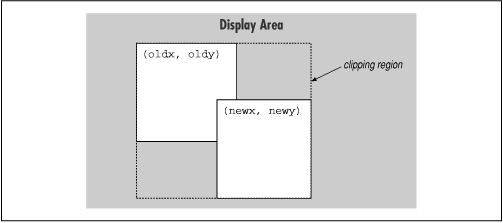
So we can save time in our applet by having our update method set a clipping region that results in only the affected portion of the display being redrawn. We can pick the smallest rectangular area that includes both the old image position and the new image position, as shown in Figure 16.6. This is the only portion of the display that really needs to change; everything else stays the same.
A smarter update() could save
even more time by redrawing only those regions that have
changed. However, the simple clipping strategy we've implemented
here can be applied to many kinds of drawing, and gives quite good
performance, particularly if the area being changed is small.
One important thing to note is that, in addition to looking at
the new position, our updating operation now has to remember the last
position at which the image was drawn. Let's fix our applet so
it will use a clipping region. To keep this short and emphasize the
changes, we'll take some liberties with design and make our next
example a subclass of TerribleFlicker. Let's
call it ClippedFlicker:
public class ClippedFlicker extends TerribleFlicker {
    int nextX, nextY;

    public void mouseDragged( MouseEvent e ) {
        nextX = e.getX(); nextY = e.getY();
        repaint();
    }
    void clipToAffectedArea( Graphics g, int oldx, int oldy, int newx,
                                        int newy, int width, int height) {
        int x = Math.min( oldx, newx );
        int y = Math.min( oldy, newy );
        int w = ( Math.max( oldx, newx ) + width ) - x;
        int h = ( Math.max( oldy, newy ) + height ) - y;
        g.setClip( x, y, w, h );
    }
    public void update( Graphics g ) {
        int lastX = currentX, lastY = currentY;
        currentX = nextX; currentY = nextY;
        clipToAffectedArea( g, lastX, lastY, currentX, currentY,
                            imgWidth, imgHeight );
        paint( g );
    }
}
You should find that ClippedFlicker is
significantly faster, though it still flickers. We'll make one
more change in the next section to eliminate that.
So, what have we changed? First, we've overridden
mouseDragged() so that instead of setting the
current coordinates of the image, it sets another pair of coordinates
called nextX and nextY. These
are the coordinates at which we'll display the image the next time we
draw it.
update() now has the added responsibility of taking
the next position and making it the current position, by setting the
currentX and currentY
variables. This effectively decouples
mouseDragged() from our painting routines. We'll
discuss why this is advantageous in a bit. update()
then uses the current and next coordinates to set a clipping region on
the Graphics object before handing it off to
paint().
We have created a new, private method to help it do
this. clipToAffectedArea() takes as arguments the
new and old coordinates and the width and height of the image. It
determines the bounding rectangle as shown in
Figure 16.6, then calls setClip() to
set the clipping region. As a result, when paint()
is called, it draws only the affected area of the screen.
So, what's the deal with nextX and
nextY? By making update() keep
track of the next, current, and last coordinates separately, we
accomplish two things. First, we always have an accurate view of where
the last image was drawn, and second, we have decoupled where the next
image will be drawn from mouseDragged().
It's important to decouple painting from
mouseDragged() because there isn't necessarily a
one-to-one correspondence between calls to
repaint() and subsequent calls by
AWT to our update() method. This
isn't a defect; it's a feature that allows AWT to
schedule and consolidate painting requests. Our concern is that our
paint() method may be called at arbitrary times
while the mouse coordinates are changing. This is not necessarily
bad. If we are trying to position our object, we probably don't want
the display to be redrawn for every intermediate position of the
mouse. It would slow down the dragging unnecessarily.
If we were concerned about getting every single change in the mouse's
position, we would have two options. We could either do some work in
the mouseDragged() method itself, or put our events
into some kind of queue. We'll see an example of the first solution in
our DoodlePad example a bit later. The latter
solution would mean circumventing AWT's own
event-scheduling capabilities and replacing them with our own, and we
don't want to take on that responsibility.
Now let's get to the most powerful technique in our toolbox: double buffering. Double buffering is a technique that fixes our flickering problems completely. It's easy to do and gives us almost flawless updates. We'll combine it with our clipping technique for better performance, but in general you can use double buffering with or without clipping.
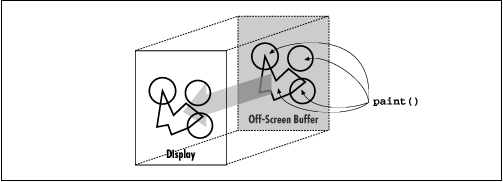
Double buffering our display means drawing into an off-screen buffer and then copying our completed work to the display in a single painting operation, as shown in Figure 16.7. It takes the same amount of time to draw a frame, but double buffering instantaneously updates our display when it's ready.
We can get this effect by changing just a few lines of our
ClippedFlicker applet. Modify
update() to look like the following and add the
new offScreenImage instance variable as shown:
...
public class DoubleBufferedClipped extends ClippedFlicker {
    Image offScreenImage;
    Graphics offScreenGC;
    public void update( Graphics g ) {
        if ( offScreenImage == null ) {
            offScreenImage = createImage( getSize().width, getSize().height );
            offScreenGC = img.getGraphics();
        }
        int lastX = currentX, lastY = currentY;
        currentX = nextX; currentY = nextY;
        clipToAffectedArea( offScreenGC, lastX, lastY, currentX, currentY,
                            imgWidth, imgHeight );
        clipToAffectedArea( g, lastX, lastY, currentX, currentY,
                            imgWidth, imgHeight );
        paint( offScreenGC );
        g.drawImage(offScreenImage, 0, 0, this);
    }
}
...
Now, when you drag the image, you shouldn't see any flickering. The update rate should be about the same as in the previous example (or marginally slower), but the image should move from position to position without noticeable repainting.
So, what have we done this time? Well, the new instance variable,
offScreenImage, is our off-screen buffer. It is a
drawable Image object. We can get an off-screen
Image for a component with the
createImage()
method. createImage() is similar to
getImage(), except that it produces an empty image
area of the specified size. We can then use the off-screen image like
our standard display area by asking it for a graphics context with the
Image getGraphics() method. After we've drawn into
the off-screen image, we can copy that image back onto the screen with
drawImage().
The biggest change to the code is that we now pass
paint() the graphics context of our off-screen
buffer, rather than that of the on-screen
display. paint() is now drawing on
offScreenImage; it's our job to copy the image to
the display when it's done. This might seem a little suspicious to
you, as we are now using paint() in two
capacities. AWT calls paint()
whenever it's necessary to repaint our entire applet and passes it an
on-screen graphics context. When we update ourselves, however, we call
paint() to do its work on our off-screen area and
then copy that image onto the screen from within
update().
Note that we're still clipping. In fact, we're clipping both the on-screen and off-screen buffers. Off-screen clipping has the same benefits we described earlier: AWT should be able to ignore wasted drawing operations. On-screen clipping minimizes the area of the image that gets drawn back to the display. If your display is fast, you might not even notice the savings, but it's an easy optimization, so we'll take advantage of it.
We create the off-screen buffer in update()
because it's a convenient and safe place to do so.
Our image observer probably won't be called, since
drawImage() isn't doing anything nasty like
scaling, and the image itself is always available.
The dispose() method of the
Graphics class allows us to deallocate a graphics
context explicitly when we are through with it. This is simply an
optimization. If we were creating new graphics contexts frequently (say,
in each paint()), we could help the system get rid of them.
This might provide some performance improvement when doing
heavy drawing. We could allow garbage collection to reclaim the unused
objects; however, the garbage collection process might be hampered if
we are doing intense calculations or lots of repainting.
In addition to serving as buffers for double buffering, off-screen
images are useful for saving complex, hard-to-produce, background
information. We'll look at a simple example: the "doodle
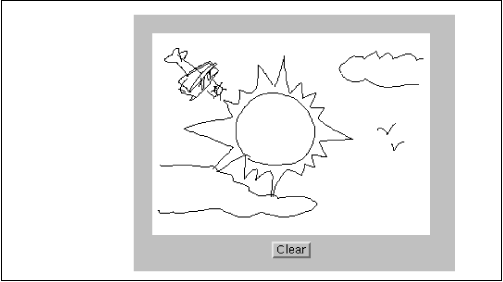
pad." DoodlePad is a simple drawing tool that
lets us scribble by dragging the mouse, as shown in
Figure 16.8. It draws into an off-screen image; its
paint() method simply copies the image to the
display area.
import java.awt.*;
import java.awt.event.*;
public class DoodlePad extends java.applet.Applet implements ActionListener {
    DrawPad dp;
    public void init() {
        setLayout( new BorderLayout() );
        add( "Center", dp = new DrawPad() );
        Panel p = new Panel();
        Button clearButton = new Button("Clear");
        clearButton.addActionListener( this );
        p.add( clearButton );
        add( "South", p );
    }
    public void actionPerformed( ActionEvent e ) {
        dp.clear();
    }
}
class DrawPad extends Canvas {
    Image drawImg;
    Graphics drawGr;
    int xpos, ypos, oxpos, oypos;
    DrawPad() {
        setBackground( Color.white );
        enableEvents( AWTEvent.MOUSE_EVENT_MASK
            | AWTEvent.MOUSE_MOTION_EVENT_MASK );
    }
    public void processEvent( AWTEvent e ) {
        int x = ((MouseEvent)e).getX(), y = ((MouseEvent)e).getY();
        if ( e.getID() == MouseEvent.MOUSE_DRAGGED ) {
            xpos = x; ypos = y;
            if ( drawGr != null )
                drawGr.drawLine( oxpos, oypos, oxpos=xpos, oypos=ypos );
            repaint();
        } else
        if ( e.getID() == MouseEvent.MOUSE_PRESSED ) {
            oxpos = x; oypos = y;
        }
        super.processEvent(e);
    }
    public void update( Graphics g ) {
        paint(g);
    }
    public void paint( Graphics g ) {
        if ( drawImg == null ) {
            drawImg = createImage( getSize().width, getSize().height );
            drawGr = drawImg.getGraphics();
        }
        g.drawImage(drawImg, 0, 0, null);
    }
    public void clear() {
        drawGr.clearRect(0, 0, getSize().width, getSize().height);
        repaint();
    }
}
Give it a try. Draw a nice moose, or a sunset. I just drew a lovely cartoon of Bill Gates. If you make a mistake, hit the Clear button and start over.
The parts should be familiar by now. We have made a type of
Canvas called DrawPad. The new
DrawPad component handles mouse events by enabling
both simple mouse events (mouse clicks) and mouse motion events (mouse
drags), and then overriding the processEvent()
method to handle these events. By doing so, we are simulating the old
(Java 1.0) event-handling model; in this situation, it's a little more
convenient than implementing all the methods of the
MouseListener and
MouseMotionListener interfaces. The
processEvent() method handles
MOUSE_DRAGGED movement events by drawing lines into
an off-screen image and calling repaint() to update
the display. DrawPad's paint()
method simply does a drawImage() to copy the
off-screen drawing area to the display. In this way,
DrawPad saves our sketch information.
What is unusual about DrawPad is that it
does some drawing outside of paint() or
update(). In our clipping example, we
talked about decoupling update() and
mouseDragged(); we were willing to discard
some mouse movements in order to save some updates. In this case, we
want to let the user scribble with the mouse, so we should respond to
every mouse movement. Therefore, we do our work in
processEvent() itself. As a rule, we
should be careful about doing heavy work in event-handling methods
because we don't want to interfere with other tasks the
AWT thread is performing. In this case, our line-drawing option should not be a burden, and our primary concern is
getting as close a coupling as possible between the mouse movement
events and the sketch on the screen.
In addition to drawing a line as the user drags the mouse, the part
processEvent() that handles
MOUSE_DRAGGED() events maintains a set of old
coordinates, to be used as a starting point for the next line
segment. The part of processEvent() that handles
MOUSE_PRESSED events resets the old coordinates to
the current mouse position whenever the user picks up and moves to a
new location. Finally, DrawPad provides a
clear() method that clears the off-screen buffer
and calls repaint() to update the display. The
DoodlePad applet ties the
clear() method to an appropriately labeled button
through its actionPerformed() method.
What if we wanted to do something with the image after the user
has finished scribbling on it? Well, as we'll see in the next
chapter, we could get the pixel data for the image from its
ImageProducer object and work with that. It
wouldn't be hard to create a save facility that stores the pixel data
and reproduces it later. Think about how you might go about creating a
networked "bathroom wall" where people could scribble on
your Web pages.
|  | |
| 16.4 Images |  | 17. Working with Images |
