 | Chapter 14 Creating GUI Components |  |

| Chapter 14 Creating GUI Components | |
A List is a step up on the evolutionary
chain. Lists let the user choose from a group of alternatives. They
can be configured to force the user to choose a single selection or
to allow multiple choices. Usually, only a small group of choices are
displayed at a time; a built-in scrollbar lets you move to the choices
that aren't visible.
A List generates two kinds of events. If
the user single-clicks on a selection, the
List generates an
ItemEvent. If the user double-clicks, a
List generates an
ActionEvent. Therefore, a
List can register both
ItemListeners and
ActionListeners. In either case, the
listener can use the event to figure out what the user selected.
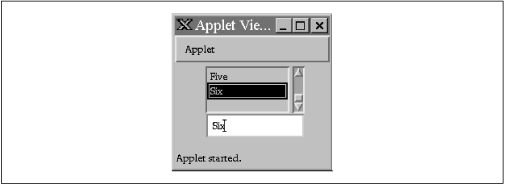
The applet below, SearchableListApplet shown in Figure 14.4,
contains a List and a text field. Several
of the items in the list aren't visible, because the list is too long
for the space we've allotted for it (enough to display three items).
When you type the name of an item into the text field, the applet
displays the item you want and selects it. Of course, you could do
this with a scrollbar, but then we wouldn't have the opportunity to
demonstrate how to work with lists.
import java.awt.*;
import java.awt.event.*;
public class SearchableListApplet extends java.applet.Applet {
    public void init() {
        String [] items = { "One", "Two", "Three", "Four", "Five", "Six" };
        add( new SearchableList( items ) );
    }
}
class SearchableList extends Container implements ActionListener {
    List list;
    TextField field;
    SearchableList( String [] items ) {
        list = new List( 3 );  // Let some scroll for this example
        for(int i=0; i< items.length; i++)
            list.addItem( items[i] );
        field = new TextField();
        field.addActionListener( this );
        setLayout( new BorderLayout() );
        add("Center", list);
        add("South", field);
    }
    public void actionPerformed( ActionEvent e ) {
        String search = field.getText();
        for (int i=0; i< list.getItemCount(); i++)
            if ( list.getItem( i ).equals( search ) ) {
                list.select( i );
                list.makeVisible( i );  // Scroll it into view
                break;
            }
        field.setText(""); // clear the text field
    }
}
We create the List and the
TextField in a new class,
SearchableList; the applet itself only
displays the SearchableList.
SearchableList itself is a new kind of
animal; it is a lightweight component that subclasses
Container directly. In the constructor for SearchableList, we
create our List by calling its
constructor, setting it to display at most three components. We then
call the addItem() method to add the
possible selections to the list; these are the numbers "One" through
"Six," passed to us in an array.
We then create our TextField and register
ourselves (i.e., SearchableList) as an
ActionListener for the field's events.
Finally, we set the layout for
SearchableList to a border layout, put
List in the center of the layout, and TextField at the bottom.
The actionPerformed() method is called
whenever the user presses Return in our
TextField. In this method, we call
getText() to extract the text the user
typed. Then we loop through all the items in the list to see if
there's a match. getItemCount() tells us
the number of items in the list; getItem()
gives us the text associated with any particular item. When we find a
match, we call select() to make the
matching item the selected item, and we call
makeVisible() to make sure that this item
is displayed.
By default, List only allows a single
selection. We've done nothing in this example to allow multiple
selections, so whenever a user chooses an item, the previous selection
is automatically dropped. If you want a list that supports multiple
selections, call setMultipleMode(true). In
this case, you must use the deselect()
method to clear the user's selections.
|  | |
| 14.2 Text Components |  | 14.4 Menus and Choices |
