 | Chapter 14 Creating GUI Components |  |

| Chapter 14 Creating GUI Components | |
AWT gives us two basic
text components: TextArea is a multiline text
editor with vertical and horizontal
scrollbars; TextField is a simple, single line text
editor.
Both TextField and
TextArea derive from the
TextComponent
class, which provides
the functionality they have in common. This includes methods for
setting and retrieving the displayed text, specifying whether the text
is "editable" or read-only, manipulating the cursor position in
the display, and manipulating the selected text.
Both TextAreas and
TextFields send
TextEvents to listeners when their text is
modified. In order to receive these events, you must implement the
java.awt.TextListener interface and
register by calling the component's
addTextListener() method.
In addition, TextField components generate
an ActionEvent whenever the user presses
the Return key within the
field. To get these events, implement the
ActionListener interface, and call
addActionListener() to register.
The next sections contain a couple of simple applets that show you how to work with text areas and fields.
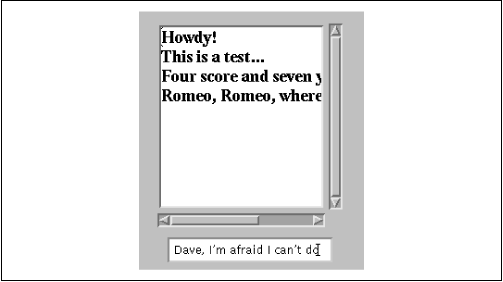
Our first example, TextEntryBox, creates a
TextArea and ties it to a
TextField, as you can see in
Figure 14.1. When the user hits Return in the
TextField, we receive an
ActionEvent
and add the line to the TextArea's display. Try it out. You may have
to click your mouse in the TextField to give it
focus before typing in it. If you fill up the display with lines, you
can test drive the scrollbar:
import java.awt.*;
import java.awt.event.*;
public class TextEntryBox extends java.applet.Applet
implements ActionListener {
    TextArea area;
    TextField field;

    public void init() {
        setLayout( new BorderLayout() );
        add( "Center", area = new TextArea() );
        area.setFont( new Font("TimesRoman",Font.BOLD,18) );
        area.setText("Howdy!\n");
        add( "South", field = new TextField() );
        field.addActionListener ( this );
    }
    public void actionPerformed(ActionEvent e) {
        area.append( field.getText() + '\n' );

        field.setText("");
    }
}
TextEntryBox is exceedingly simple; we've done a
few things to make it more interesting. First, we set the
applet's layout manager to BorderLayout. We
use BorderLayout to position the
TextArea above the
TextField; the text area goes in the
"North" region of the layout, and the text field is in the "South" region. We
give the text area a bigger font using
Component's setFont()
method; fonts are discussed in Chapter 16. Finally, we want to be
notified whenever the user presses Return in the text field, so we
register our applet (this) as a listener
for action events by calling
field.addActionListener(this).
Pressing Return in the
TextField generates an action event, and
that's where the fun begins. We handle the event in the
actionPerformed() method of our container, the
TextEntryBox applet.
Then we use the getText() and
setText() methods to manipulate the text the user
has typed. These methods can be used for both
TextField and
TextArea, because
these components are derived from the TextComponent
class, and therefore have some common functionality.
Our event handler is called
actionPerformed(), as required by the
ActionListener interface. First,
actionPerformed() calls
field.getText() to read the text that the
user typed into our
TextField. It then adds this text to
the TextArea by calling
area.append(). Finally, we clear the text
field by calling the method field.setText(""),
preparing it for more input.
By default, TextField and
TextArea are editable; you can type and edit in
both text components. They can be changed to output-only areas with
the setEditable() method. Both text components also
support selections. A selection is a subset of
text that is highlighted for copying and pasting in your windowing
system. You select text by dragging the mouse over it; you can then
copy and paste it into other text windows. You can get the selected
text explicitly with getSelectedText().
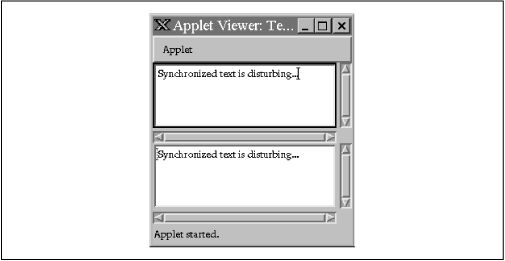
Our next example is a TextWatcher that
consists of two linked text
areas; Figure 14.2 shows what the applet looks like. Anything the user types into either area is reflected in both.
It demonstrates how to handle a TextEvent,
which is generated whenever
the text changes in a TextComponent. It
also demonstrates how to use
an adapter class, which is a more realistic way of setting up event
listeners. Registering the applet as a listener is okay for simple
programs, but the technique shown here will serve you better in more
complex situations:
import java.awt.*;
import java.awt.event.*;
public class TextWatcher extends java.applet.Applet {
    TextArea area1, area2;

    public void init() {
        setLayout( new GridLayout(2,1) );
        add( area1 = new TextArea() );
        add( area2 = new TextArea() );
        area1.addTextListener ( new TextSyncAdapter( area2 ));
        area2.addTextListener ( new TextSyncAdapter( area1 ));
    }
    class TextSyncAdapter implements TextListener {
        TextArea targetArea;
        TextSyncAdapter( TextArea targetArea ) {
            this.targetArea = targetArea;
        }
        public void textValueChanged(TextEvent e) {
            TextArea sourceArea = (TextArea)e.getSource();
            if ( ! targetArea.getText().equals( sourceArea.getText() ) )
                targetArea.setText( sourceArea.getText() );
        }
    }
}
Setting up the display is simple. We use a
GridLayout and add two
text areas to the layout. Then we add our listeners for text events,
which are generated whenever the text in a
TextComponent is changed.
There is one listener for each text
area; both are TextSyncAdapter objects.
One listens to
events from area1 and modifies the text in
area2; the other listens
to events from area2 and modifies the text
in area1.
All the real work is done by the
TextSyncAdapter. This is an inner
class; its definition is contained within
TextWatcher and can't be
referenced by classes outside of our
TextWatcher. The adapter
implements the TextListener interface, and
therefore includes a
textValueChanged() method.
textValueChanged() is the heart of the
listener. First, it extracts
the source area from the incoming event; this is the area that
generated the event. The area whose text the listener is changing (the
target area) was stored by the constructor. Then it tests whether the texts in both areas are the same. If they aren't, it calls the
target area's setText() method to set its
text equal to the source area's.
The one mysterious feature of this method is the test for equality.
Why is it necessary? Why can't we just say "the text in one area
changed, so set the text in the other"? A
TextEvent is generated
whenever a TextComponent is modified for
any reason; this includes
changes caused by software, not just changes that occur when a user
types. So think about what happens when the user types into
area1.
Typing generates a TextEvent, which causes
the adapter to change the
text in area2. This generates another
TextEvent, which, if we didn't do
any testing, would cause us to change area1 again, which would
generate another TextEvent, ad infinitum.
By checking whether
the texts in our two areas are equivalent, we prevent an infinite loop
in which text events ping-pong back and forth between the two areas.
Text areas and text fields do the work of handling keystrokes for you,
but they're certainly not your only options for dealing with keyboard
input. Any Component can register
KeyListeners to
receive KeyEvents that occur when their
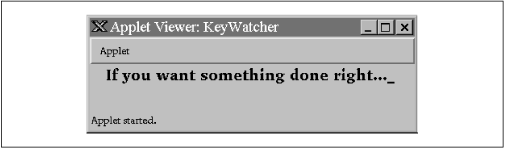
component has focus. Here's an example that shows how you might use these to make your own text
gadgets; Figure 14.3 shows what KeyWatcher looks like.
import java.awt.*;
import java.awt.event.*;
public class KeyWatcher extends java.applet.Applet {
    StringBuffer text = new StringBuffer();
    public void init () {
        setFont( new Font("TimesRoman",Font.BOLD,18) );
        addKeyListener ( new KeyAdapter() {
            public void keyPressed( KeyEvent e ) {
                System.out.println(e);
                type( e.getKeyCode(), e.getKeyChar() );
            }
        } );
        requestFocus();
    }
    public void type(int code, char ch ) {
        switch ( code ) {
            case ( KeyEvent.VK_BACK_SPACE ):
                if (text.length() > 0)
                    text.setLength( text.length() - 1 );
                break;
            case ( KeyEvent.VK_ENTER ):
                    System.out.println( text );  // Process line
                    text.setLength( 0 );
                break;
            default:
                if ( (ch >= ' ') && (ch <= '~') )
                    text.append( ch );
        }
        repaint();
    }

    public void paint(Graphics g) {
        g.drawString(text.toString() + "_", 20, 20);
    }
}
Fundamentally, all we are doing is collecting text in a
StringBuffer
and using the drawString() method to
display it on the screen. As
you'd expect, paint() is responsible for managing the display.
In this applet, we're interested in receiving
KeyEvents, which occur
whenever the user presses any key. To get these events, the applet
calls its own addKeyListener() method. The
KeyListener itself is an
anonymous class. It doesn't have a name and can't be used anywhere
else. We create this class by getting a new
KeyAdapter() and
overriding its keyPressed() method.
(Remember that KeyAdapter contains
do-nothing implementations of the methods in the
KeyListener
interface.) All keyPressed() does is call
our private method type()
with two arguments: the key code of the key that was pressed, and the
logical character represented by the keystroke.
type() shows you how to deal with
keystrokes. Each key event is
identified with a code, which identifies the actual key typed, and a
character, which identifies what the user meant to type. This sounds
confusing, but it isn't. Basically, there is a constant for each key
on the keyboard: VK_ENTER for the Enter
(Return) key, VK_A for the
letter A, and so on. However, the physical keystroke isn't usually the
same as what the user types: the uppercase character A is made up of two
keystrokes (the A key and the Shift key), while lowercase a is made up of one.
Therefore, you can expect events for both physical keystrokes and
typed characters. The int constant
VK_UNDEFINED is used for the physical key
code when the event doesn't correspond to a single keystroke. The
char constant
CHAR_UNDEFINED indicates that the event
corresponds to a physical keystroke but not a typed character.
The type() method is called with both the
key constant and the
character as arguments. The way we use them is relatively simple and
would need more work for an industrial strength program. Simply, if
the physical key is VK_BACK_SPACE, we
delete the last character from
the StringBuffer we're building. If it's
VK_ENTER, we clear the
StringBuffer. If the physical key has any
other value, we look at the
character the user typed. If this is a printable character, we add it
to the StringBuffer. Anything else we
ignore. Once we've handled the
event, we call repaint() to update the
screen. Using key codes to
handle operations like backspace or enter is easier and less
bug-prone than working with odd Control key combinations.
A final note on our anonymous adapter class: in essence our adapter is
letting us write a "callback," by calling
type() whenever
keyPressed()
is called. That's one important use for adapters: to map methods in
the various listener interfaces into the methods that make sense for
your class. Unlike C or C++, Java won't let us pass a method pointer
as an argument,
but it will let us create an anonymous class that calls our method
and passes an instance of that class.
|  | |
| 14.1 Buttons and Labels |  | 14.3 Lists |
