 | Chapter 17 Working with Images |  |

| Chapter 17 Working with Images | |
What if we want to make our own image data? To be an image producer,
we have to implement the five methods defined in the
ImageProducer interface:
addConsumer()
startProduction()
isConsumer()
removeConsumer()
requestTopDownLeftRightResend()
ImageProducer simply deal with the
process of registering consumers. addConsumer()
takes an ImageConsumer as an argument and adds it
to the list of consumers. Our producer can then start sending image
data to the consumer whenever it's ready.
startProduction() is identical to
addConsumer(), except that it asks the producer to
start sending data as soon as possible. The difference might be that a
given producer would send the current frame of data or initiate
construction of a frame immediately, rather than waiting until its
next cycle.
isConsumer() tests whether a particular
consumer is already registered, and removeConsumer()
removes a consumer from the list. We'll see shortly that we can
perform these kinds of operations easily with a
Vector.
An ImageProducer also needs to know how to
use the ImageConsumer interface of its clients. The
final method of the ImageProducer interface,
requestTopDownLeftRightResend(), asks that the
image data be resent to the consumer, in order, from beginning to end.
In general, a producer can generate pixel data and send it to the
consumer in any order that it likes.
The setPixels() method of the
ImageConsumer interface takes parameters telling
the consumer what part of the image is being delivered on each call. A
call to requestTopDownLeftRightResend() asks the
producer to send the pixel data again, in order. A consumer might do
this so that it can use a higher quality conversion algorithm that
relies on receiving the pixel data in sequence. It's important to
note that the producer is allowed to ignore this request; it
doesn't have to be able to send the data in sequence.
Everybody wants to work with color in their application, but using color raises problems. The most important problem is simply how to represent a color. There are many different ways to encode color information: red, green, blue (RGB) values; hue, saturation, value (HSV); hue, lightness, saturation (HLS); and more. In addition, you can provide full color information for each pixel, or you can just specify an index into a color table (palette) for each pixel. The way you represent a color is called a color model. AWT provides tools for two broad groups of color models: direct and indexed.
As you might expect, you need to specify a color model in order
to generate pixel data; the abstract class
java.awt.image.ColorModel represents a color
model. A ColorModel is one of the arguments to the
setPixels() method an image producer calls to
deliver pixels to a consumer. What you probably wouldn't expect
is that you can use a different color model every time you call
setPixels(). Exactly why you'd do this is
another matter. Most of the time, you'll want to work with a
single color model; that model will probably be the default direct
color model. But the additional flexibility is there if you need it.
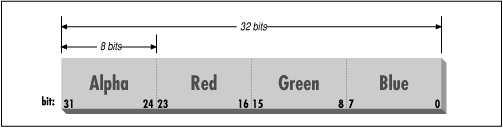
By default, the core AWT components use a direct color model called ARGB. The A stands for "alpha," which is the historical name for transparency. RGB refers to the red, green, and blue color components that are combined to produce a single, composite color. In the default ARGB model, each pixel is represented by a 32-bit integer that is interpreted as four 8-bit fields; in order, the fields represent the transparency (A), red, green, and blue components of the color, as shown in Figure 17.3.
To create an instance of the default ARGB
model, call the static
getRGBdefault() method in
ColorModel. This method returns a
DirectColorModel object;
DirectColorModel is a subclass of
ColorModel. You can also create other direct color
models by calling a DirectColorModel constructor,
but you shouldn't need to unless you have a fairly exotic
application.
In an indexed color model, each pixel is represented by a smaller amount of information: an index into a table of real color values. For some applications, generating data with an indexed model may be more convenient. If you have an 8-bit display or smaller, using an indexed model may be more efficient, since your hardware is internally using an indexed color model of some form.
While AWT provides
IndexedColorModel objects, we won't cover
them in this book. It's sufficient to work with the
DirectColorModel. Even if you have an 8-bit
display, the Java implementation on your platform should accommodate
the hardware you have and, if necessary, dither colors to fit your
display. Java also produces transparency on systems that don't
natively support it by dithering colors.
Let's take a look at producing some image data. A picture may be
worth a thousand words, but fortunately, we can generate a picture in
significantly fewer than a thousand words of Java.
If we just want to render image frames byte by byte, we can use a utility
class that acts as an ImageProducer for
us.
java.awt.image.MemoryImageSource is a simple
utility class that implements the ImageProducer
interface; we give it pixel data in an array and it sends that data to
an image consumer. A MemoryImageSource can be
constructed for a given color model, with various options to specify
the type and positioning of its data. We'll use the simplest
form, which assumes an ARGB color model.
The following applet, ColorPan, creates an image
from an array of integers holding ARGB pixel values:
import java.awt.*;
import java.awt.image.*;
public class ColorPan extends java.applet.Applet {
    Image img;
    int width, height;
    int [] pixData;
    public void init() {
        width = getSize().width;
        height = getSize().height;
        pixData = new int [width * height];
        int i=0;
        for (int y = 0; y < height; y++) {
            int red = (y * 255) / (height - 1);
            for (int x = 0; x < width; x++) {
                int green = (x * 255) / (width - 1);
                int blue = 128;
                int alpha = 255;
                pixData[i++] = (alpha << 24) | (red << 16) |
                               (green << 8 ) | blue;
            }
        }
    }
    public void paint( Graphics g ) {
        if ( img == null )
            img = createImage( new MemoryImageSource(width, height,
                                          pixData, 0, width));
        g.drawImage( img, 0, 0, this );
    }
}
Give it a try. The size of the image is determined by the size of the applet when it starts up. You should get a very colorful box that pans from deep blue at the upper left corner to bright yellow at the bottom right, with green and red at the other extremes.
We create the pixel data for our image in the
init() method and then use
MemoryImageSource to create and display the image
in paint(). The variable pixData
is a one-dimensional array of integers that holds 32-bit
ARGB pixel values. In init() we
loop over every pixel in the image and assign it an
ARGB value. The alpha (transparency) component is
always 255, which means the image is opaque. The blue component
is always 128, half its maximum intensity. The red component varies
from 0 to 255 along the y axis; likewise, the green component varies
from 0 to 255 along the x axis. The line below combines these
components into an ARGB value:
pixData[i++] = (alpha << 24) | (red << 16) | (green << 8 ) | blue;
The bitwise left-shift operator (<<) should
be familiar to C programmers. It simply shoves the bits over by the
specified number of positions. The alpha value takes the top byte of
the integer, followed by the red, green, and blue values.
When we construct the MemoryImageSource as a
producer for this data, we give it five parameters: the width and
height of the image to construct (in pixels), the
pixData array, an offset into that array, and the
width of each scan line (in pixels). We'll start with the first
element (offset 0) of pixData; the width of each
scan line and the width of the image are the same. The array
pixData has width * height
elements, which means it has one element for each pixel.
We create the actual image once, in paint(),
using the createImage() method that our applet
inherits from Component. In the double-buffering
and off-screen drawing examples, we used
createImage() to give us an empty off-screen image
buffer. Here we use createImage() to generate an
image from a specified ImageProducer.
createImage() creates the Image
object and receives pixel data from the producer to construct the
image. Note that there's nothing particularly special about
MemoryImageSource; we could use any object that
implements the image-producer interface inside of
createImage(), including one we wrote
ourselves. Once we have the image, we can draw it on the display with
the familiar drawImage() method.
MemoryImageSource can also be used to
generate a sequence of images or to update an image dynamically. In
Java 1.1, this is probably the easiest way to build your own low-level
animation software. This example simulates the static on a television
screen. It generates successive frames of random black and white
pixels and displays each frame when it is complete. Figure 17.4 shows one frame of random static, followed by the code:

import java.awt.*;
import java.awt.image.*;
public class StaticGenerator
        extends java.applet.Applet
        implements Runnable {
    int arrayLength, pixels[];
    MemoryImageSource source;
    Image image;
    int width, height;
    public void init() {
        width = getSize().width; height = getSize().height;
        arrayLength = width * height;
        pixels = new int [arrayLength];
        source = new MemoryImageSource(width, height, pixels, 0, width);
        source.setAnimated(true);
        image = createImage(source);
        new Thread(this).start();
    }
    public void run() {
        while (true) {
            try {
                Thread.sleep(1000/24);
            } catch( InterruptedException e ) { /* die */ }
            for (int x = 0; x < width; x++)
                for (int y = 0; y < height; y++)  {
                    boolean rand = Math.random() > 0.5;
                    pixels[y*width+x] =
                        rand ? Color.black.getRGB() : Color.white.getRGB();
                }
            // Push out the new data
            source.newPixels(0, 0, width, height);
        }
    }
    public void paint( Graphics g ) {
        g.drawImage(image, 0, 0, this);
    }
}
The init() method sets up the
MemoryImageSource that produces the
sequence of images. It first computes the size of the array needed to
hold the image data. It then creates a
MemoryImageSource object that produces
images the width and height of the display, using the default color
model (the constructor we use assumes that we want the default). We
start taking pixels from the beginning of the pixel array, and scan
lines in the array have the same width as the image. Once we have
created the MemoryImageSource, we call its
setAnimated() method to tell it that we
will be generating an image sequence. Then we use the source to create
an Image that will display our sequence.
We next start a thread that generates the pixel data. For every
element in the array, we get a random number and set the pixel to
black if the random number is greater than 0.5. Because
pixels is an
int array, we can't assign
Color objects to it directly; we use
getRGB() to extract the color components
from the black and white Color constants.
When we have filled the entire array with data, we call the
newPixels() method, which delivers the new
data to the image.
That's about all there is. We provide a very uninteresting
paint() method that just calls
drawImage() to put the current state of
the image on the screen. Whenever paint()
is called, we see the latest collection of static. The image observer,
which is the Applet itself, schedules a
call to paint() whenever anything
interesting has happened to the image. It's worth noting
how simple it is to create this animation. Once we have the
MemoryImageSource, we use it to create an
image that we treat like any other image. The code that generates the
image sequence can be arbitrarily complex--certainly in any reasonable
example, it would be more complex than our (admittedly cheesy) static.
But that complexity never infects the simple task of getting the image
on the screen and updating it.
|  | |
| 17.3 Using a MediaTracker |  | 17.5 Image Producers and Consumers |
